
GSE Smart IPTV is one of the most established IPTV players around — especially popular on iPhone, iPad and Apple TV, where good IPTV apps can be hard to find. This 2026 guide shows you exactly how to install GSE Smart IPTV, add your subscription with an M3U URL or Xtream Codes, load the EPG and tune the settings for smooth, buffer-free playback on any device.
GSE Smart IPTV, explained
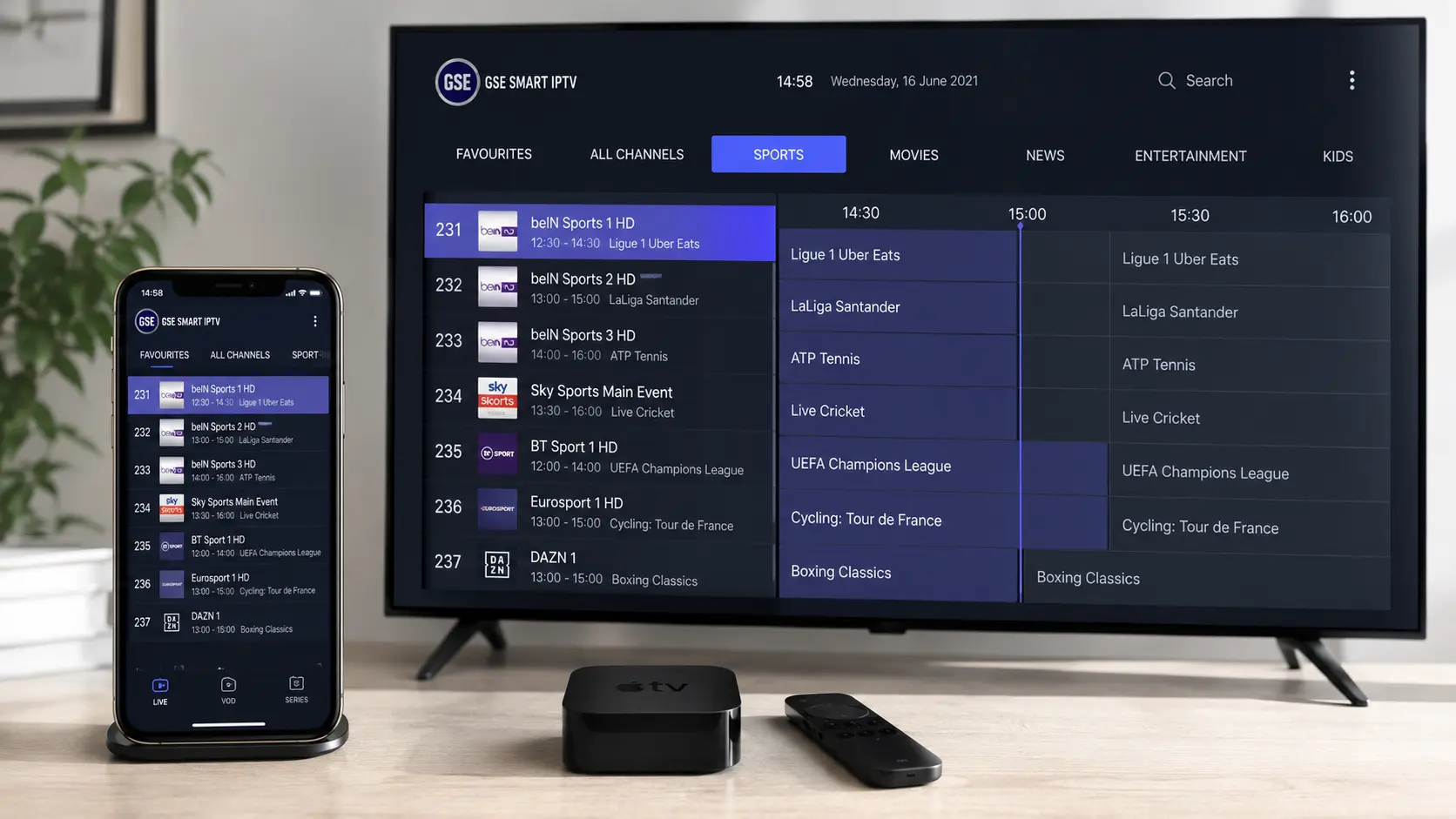
GSE Smart IPTV is a long-running IPTV player app that runs on Apple and Android devices alike. Like every player, it doesn't include any channels of its own — it's the interface. You bring your own subscription and the app turns it into live TV, movies, series and a full programme guide. Its cross-platform reach, and especially its strong support on iOS and Apple TV, are what have kept it a favourite for years. You'll often see it referred to as GSE SMART IPTV or simply "GSE", but it's the same app across the App Store and Play Store.
Because it's a mature app, GSE Smart IPTV handles the awkward parts of IPTV well: it copes with very large playlists, remembers where you left off in a film, and lets you pick which playback engine handles a stream if one struggles. That reliability is a big reason it's still recommended in 2026, even as newer players appear.
You load a service into the app in one of two ways. An M3U playlist is a single link containing every channel — quick to paste and works everywhere. Xtream Codes uses a host URL plus a username and password, and it usually pulls channel categories, VOD and the EPG in more cleanly. GSE Smart IPTV supports both through its "Remote Playlists" feature, and you can even store several playlists side by side. We'll set up both methods below.
One thing that sets the app apart is how much control it gives you: custom EPG sources, parental locks, per-playlist settings and a choice of playback engines. That flexibility makes GSE Smart IPTV a great pick for tinkerers, while still being simple enough for a first-time setup.
Which devices does GSE Smart IPTV work on?
GSE Smart IPTV is genuinely cross-platform, which is a big part of its appeal:
iPhone & iPad
One of the best iOS IPTV players.
Apple TV
Native tvOS app.
Android
Phones, tablets & Android TV.
Firestick
Fire TV via sideload.
On iPhone, iPad and Apple TV the app is a standout because Apple's App Store has relatively few solid IPTV players — GSE Smart IPTV fills that gap and syncs neatly across your Apple devices. On Android and Android TV it installs straight from the Play Store, and on a Firestick you can sideload it in a couple of minutes. Whatever you use, the setup steps are almost identical — add a remote playlist, enter your M3U or Xtream Codes, and load the guide. If you switch devices later, you simply add the same playlist again on the new one.
Using other apps or devices too? We also have guides for IPTV Smarters Pro on iPhone, Apple devices and Firestick, plus full guides for TiviMate, IPTV on Kodi and IBO Player.
How to install GSE Smart IPTV
Installing the app takes under a minute on most devices:
- iPhone / iPad / Apple TV — open the App Store, search GSE Smart IPTV and install it. Allow the local-network permission it asks for.
- Android & Android TV — install it from the Google Play Store.
- Firestick / Fire TV — enable Apps from Unknown Sources, then sideload the APK with the Downloader app if it isn't in the Amazon Appstore.
On the Firestick, sideloading is quick: from the home screen go to Find → Search, install the free Downloader app, allow it under Settings → My Fire TV → Developer Options, then enter the official APK link in Downloader to install GSE Smart IPTV. It's the same trick used for most players that aren't listed in Amazon's store.
Once the app opens for the first time, you're ready to add your subscription with the steps below. Always install from the official store or the developer's official APK to be sure you get the genuine app and not a tampered copy.
Before you start
- GSE Smart IPTV installed on your iPhone, Apple TV, Android or Firestick.
- A stable connection of 25 Mbps or faster (50 Mbps+ for 4K).
- Your IPTV login — an M3U URL or Xtream Codes from your provider, plus an EPG (XMLTV) URL if it isn't included.
Step 1: Add a remote playlist
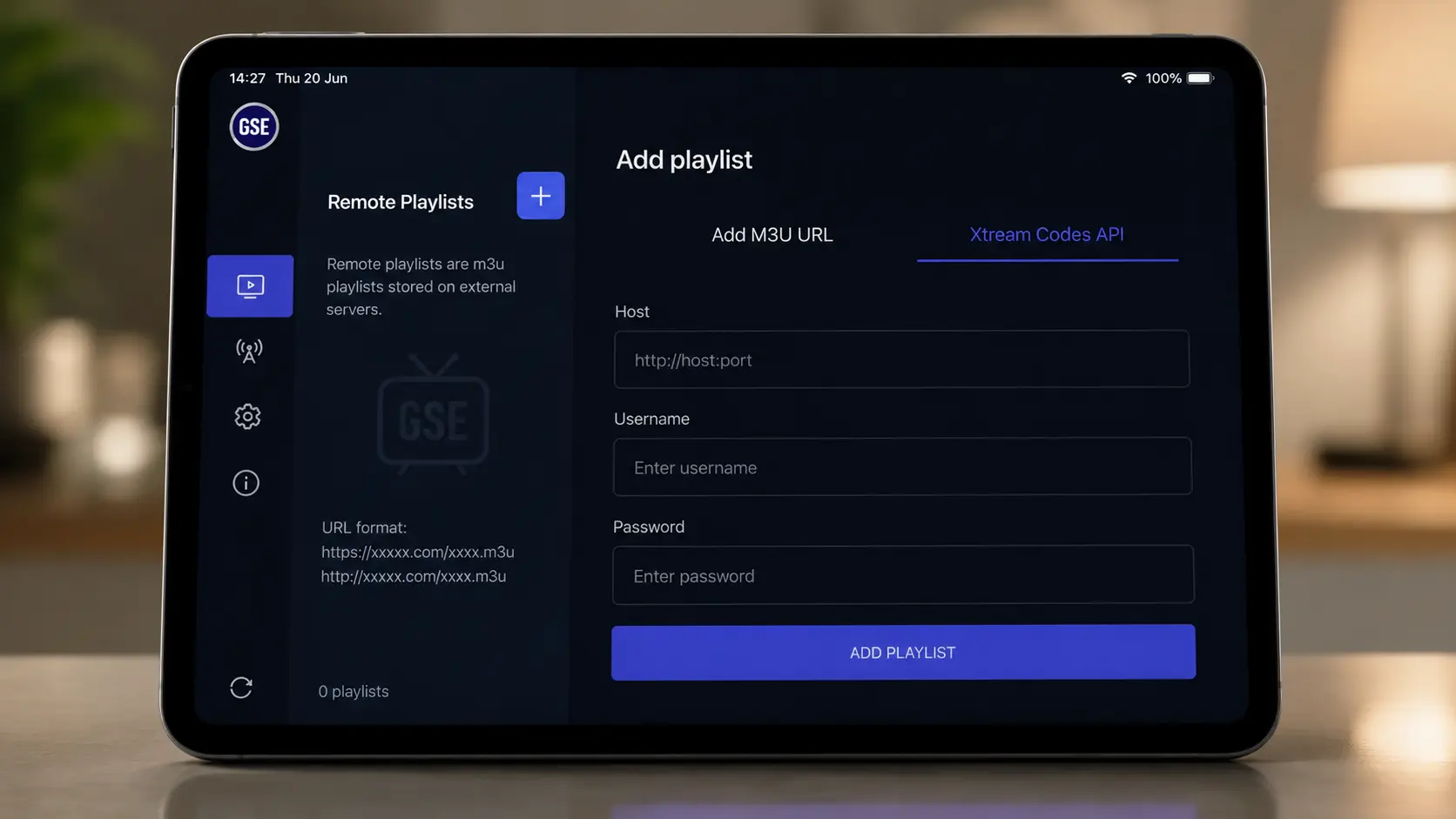
Everything starts in the app's Remote Playlists area, which is where GSE Smart IPTV stores your subscription:
Open the menu
Launch the app and tap the menu (☰) icon.
Go to Remote Playlists
Select Remote Playlists from the menu.
Tap the + button
Tap + to add a new playlist — you'll choose M3U or Xtream Codes next.
Step 2 (Method A): Add Xtream Codes
Xtream Codes is the tidiest option because it loads live channels, VOD and the EPG in organised categories:
Choose Xtream Codes API
On the add screen pick Xtream Codes API.
Enter your details
Add a playlist name, then your host / server URL, username and password.
Save
Tap the save icon and the app loads your channels and categories.
Step 2 (Method B): Add an M3U URL
If you only have a single M3U link, that works just as well:
Choose Add M3U URL
On the add screen select Add M3U URL.
Name it and paste the link
Enter a playlist name and paste your full M3U URL.
Add
Tap Add and the app imports your channel list.
Step 3: Set up the EPG (TV guide)
A TV guide makes GSE Smart IPTV far nicer to use, giving you a now-and-next grid and programme descriptions. If you added your playlist with Xtream Codes, the EPG often loads automatically. Otherwise, open the app's EPG settings and add your provider's XMLTV EPG URL, then save.
If your programme times look an hour or two off, that's almost always a time-zone mismatch rather than a fault — set the correct time offset / GMT and the guide will line up with the local schedule. An empty guide usually means the EPG URL is missing or mistyped, so check it against the link your provider sent.
GSE Smart IPTV also lets you assign a custom EPG per playlist, which is useful if your channels come from different sources. Once the guide is in, you can browse a full day's schedule, jump to a channel straight from the grid, and see programme details before you tune in — turning a plain channel list into a proper TV experience.
Step 4: Watch live TV
Open your playlist from the home screen, pick a category and choose a channel — your GSE Smart IPTV setup is complete. The first time you open a large playlist, give the app a few seconds to import everything; lists with tens of thousands of channels take a moment.
From there you can browse groups such as Sports, Movies and News, mark favourites for quick access, and use the guide to see what's on now and next. If a single channel stutters while others play fine, that stream is struggling at the source — back out and reopen it, or switch to the app's alternate player engine in the settings.
Day to day, a few habits make GSE Smart IPTV nicer to live with: build a favourites list so your go-to channels are one click away, use the category filter to jump straight to Sports or Movies instead of scrolling thousands of entries, and lean on the search box to find a specific match or film fast. On Apple TV the Siri remote works throughout, and on a phone you can flick between portrait browsing and full-screen playback with a tap.
Manage multiple playlists and favourites
One of the app's strengths is how well it handles more than one subscription:
- Multiple playlists — add several M3U or Xtream logins under Remote Playlists and switch between them any time.
- Favourites — star the channels you watch most so they sit at the top of your list.
- Parental lock — GSE Smart IPTV can PIN-protect adult categories, handy for family devices.
- Custom EPG — assign a different guide source per playlist if your providers differ.
These settings are saved on the device, so your layout stays put between sessions.
How to refresh or update your channels
IPTV providers add and remove channels regularly, so now and then your list can fall out of date. You don't need to start over — just refresh:
Reload the playlist
Open Remote Playlists, select your playlist and choose Reload / Refresh so the app re-downloads it.
Clear the cache
If channels look stale, clear the app's cache in Settings, then reload — this drops the old channel and guide data.
Check your login
If channels vanish entirely, confirm your subscription is active and that the Xtream Codes or M3U URL hasn't changed.
Because the playlist lives with your provider, a quick reload is usually all it takes to bring your channel list and EPG back up to date.
Video guide: GSE Smart IPTV setup
Prefer to watch instead of read? This short video walks through installing and setting up GSE Smart IPTV:
Best settings for smooth playback
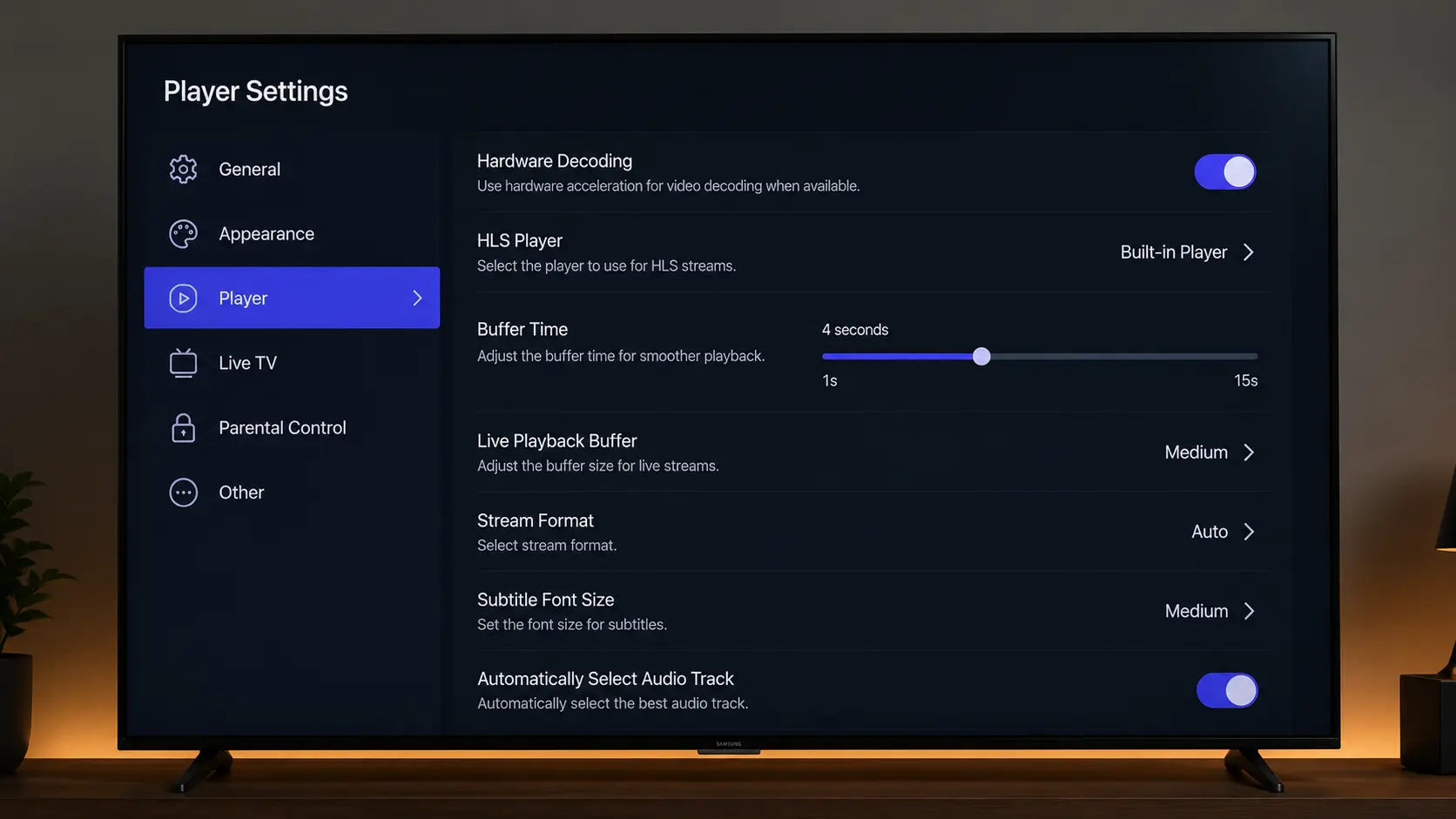
- Hardware decoding — turn it On under Settings → Player for smooth 4K on capable devices.
- Buffer time — set it to 3–5 seconds to smooth out micro-stutters on variable connections.
- Switch player engine — if a stream won't play, try the alternate internal/external player.
- Strong connection — 25 Mbps+ and 5 GHz Wi-Fi or Ethernet for live sport.
Two settings make the biggest difference. Under Settings → Player, enabling hardware decoding lets your device's chip handle 4K instead of the CPU, which fixes most stutter. Raising the buffer time to a few seconds tells the app to read further ahead before it plays, which smooths out choppy connections. If a specific channel still won't load, switching the player engine often does the trick — GSE Smart IPTV ships with more than one for exactly this reason.
It's also worth keeping the app updated: the developer regularly ships fixes for new codecs and OS changes, so an out-of-date version is a common cause of channels that suddenly stop playing after an iOS or Android update. On Apple TV in particular, keeping both tvOS and the app current makes a noticeable difference to 4K stability.
Troubleshooting GSE Smart IPTV
| Problem | Likely cause | Fix |
|---|---|---|
| Playlist won't load | Wrong M3U / Xtream details | Re-check the URL and that your plan is active |
| Channels won't play | Player engine / decoding | Toggle hardware decoding or switch player engine |
| No EPG | Missing XMLTV URL / offset | Add the EPG URL and set the correct time offset |
| Buffering | Slow connection / weak server | Use 25 Mbps+, raise buffer time, pick an anti-freeze provider |
| App keeps closing | Old version / cache | Update the app and restart the device |
| Not in Amazon store | Region listing | Sideload the APK with the Downloader app |
When something breaks, work from the outside in: confirm your subscription is still active, test the same M3U or Xtream Codes in another player, then re-check the details in the app for a stray space or typo. Nine times out of ten a "GSE Smart IPTV problem" is really an expired plan or a mistyped link rather than the app itself.
GSE Smart IPTV free vs paid
GSE Smart IPTV comes in two flavours. The free version is fully functional for adding playlists and watching live TV, but it shows ads and holds back a few power features. The paid upgrade (a small one-off in-app purchase) removes the ads and unlocks extras like advanced playlist tools and a cleaner interface. For most people the free version is enough to get started, and you can upgrade later if the ads bother you.
Either way, remember the app is only the player — neither version includes any channels. The cost that actually matters is your IPTV subscription, which is what supplies the live TV, movies and EPG you load into GSE Smart IPTV. You need both: the app (free or paid) and an active IPTV plan. Think of it like a DVD player and the discs — GSE Smart IPTV is the player, and your subscription is what actually gives you something to watch.
Key takeaways
- GSE Smart IPTV is a player only — it has no channels of its own.
- Add your subscription under Remote Playlists with Xtream Codes or an M3U URL.
- It runs on iPhone, iPad, Apple TV, Android and Firestick.
- Turn on hardware decoding and raise the buffer for smooth playback.
- You still need an active IPTV subscription with anti-freeze servers.
Is GSE Smart IPTV legal?
The app itself is completely legal — it's just a media player, published on the App Store and Play Store. What matters is the subscription you load into it: a properly licensed IPTV service is fine, while unofficial "free" playlists that rebroadcast pay-TV are not. To stay on the right side of the line, use GSE Smart IPTV with a legitimate provider and avoid pirate playlists. For a plain-English rundown of the rules, see our guide on whether IPTV is legal in Australia.
GSE Smart IPTV vs TiviMate vs IPTV Smarters Pro
GSE Smart IPTV is a great all-rounder, but it isn't the only option. Here's how the most popular players compare:
| App | Best for | Notes |
|---|---|---|
| GSE Smart IPTV | iPhone, iPad & Apple TV | Strong iOS support, multiple playlists, lots of settings |
| TiviMate | A slick, TV-style live guide | Best on Firestick/Android TV — see our TiviMate guide |
| IPTV Smarters Pro | Simple setup on any device | Great on phones, Smart TVs & Firestick |
If you're mainly on Apple devices, GSE Smart IPTV is one of the best choices going. If you're on a Firestick or Android box and want the cleanest live-TV grid, TiviMate may suit you better, while IPTV Smarters Pro is the easy all-device option. The good news: the same IPTV subscription works across all of them.
Related IPTV guides
Keep exploring — these guides pair perfectly with your GSE Smart IPTV setup:
Frequently asked questions
What is GSE Smart IPTV?
GSE Smart IPTV is a popular IPTV player app for iOS, Apple TV, Android and Firestick. It has no channels of its own — you add your own IPTV subscription via an M3U URL or Xtream Codes and it plays your live TV, VOD and EPG.
How do I add a playlist to GSE Smart IPTV?
Open the app, go to Remote Playlists and tap the + button. Choose Add M3U URL and paste your link, or select Xtream Codes API and enter your host URL, username and password, then save.
Is GSE Smart IPTV free?
There's a free, ad-supported version and a paid upgrade that removes ads and unlocks extras. You still need a separate IPTV subscription for the channels.
Does GSE Smart IPTV work on Firestick?
Yes. It runs on Amazon Firestick and Android TV. If it isn't in the Amazon Appstore in your region, sideload the APK with the Downloader app, then add your playlist as usual.
Does GSE Smart IPTV work on iPhone and Apple TV?
Yes — it's one of the best-supported IPTV players on iOS and tvOS. Install it from the App Store and add your M3U or Xtream Codes under Remote Playlists.
Why does GSE Smart IPTV keep buffering?
Usually a slow connection or an overloaded server. Use 25 Mbps or faster, turn on hardware decoding, raise the buffer time to 3–5 seconds and choose a provider with anti-freeze servers.
Can I add more than one playlist?
Yes. Under Remote Playlists you can store several M3U or Xtream logins and switch between them, which is handy if you run more than one subscription.
Does GSE Smart IPTV have an EPG?
Yes. With Xtream Codes the guide often loads automatically; otherwise add your provider's XMLTV EPG URL in the app's EPG settings.
M3U or Xtream Codes — which is better in GSE?
Both work. Xtream Codes usually loads categories, VOD and the EPG more cleanly, while an M3U URL is a quick single-link setup. If your provider offers Xtream Codes, use them.
Power GSE Smart IPTV with a great subscription
65,000+ channels, 4K streams and anti-freeze servers — perfect for GSE Smart IPTV. From $14.99/month with a 7-day money-back guarantee.
Get Started with IPTV Australia 4K →