
IBO Player is one of the simplest ways to turn a Smart TV, Firestick or phone into a full IPTV box — no add-ons, no sideloading tricks, just a clean app you activate online. This 2026 guide shows you exactly how to install IBO Player, find your MAC address and device key, activate it on the web portal and add your M3U or Xtream Codes playlist, plus how to load the EPG and fix the most common problems.
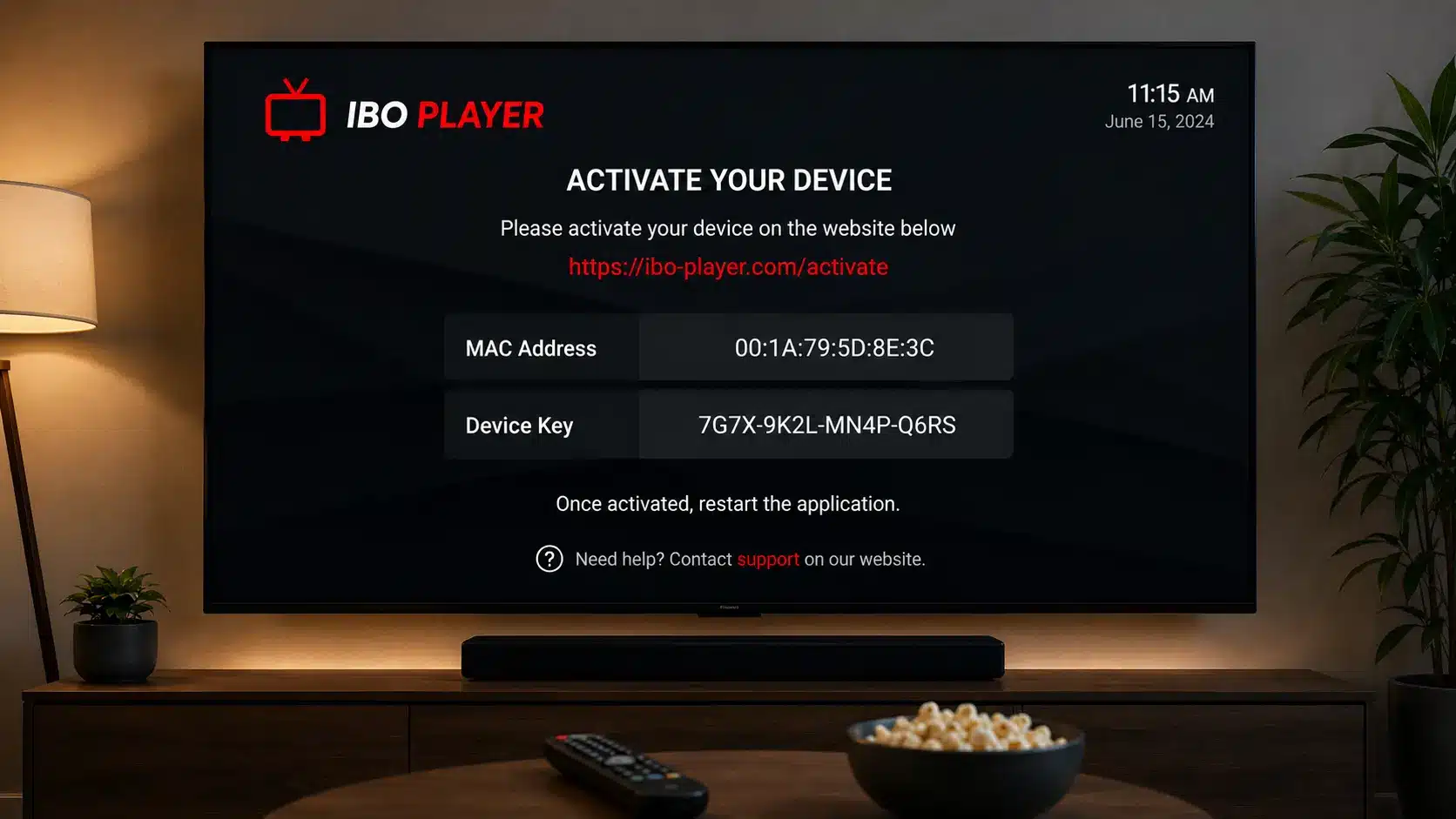
IBO Player, explained
IBO Player (and its newer sibling IBO Player Pro) is a dedicated IPTV player app. Like most players, it doesn't come with any channels of its own — instead it gives you a clean, TV-friendly interface for live channels, movies, series and a full EPG once you load your own IPTV subscription. What makes it popular is how little fuss it takes: on most Smart TVs it's a one-tap install, and you set everything up from your phone through a simple web page.
The clever part is how activation works. When you open the app it shows a unique MAC address (your device ID) and a device key. You take those two details to the activation website, log in, and add your playlist there — so you never have to type long URLs with a TV remote. The app then syncs your channels down to the screen. It's this remote-free setup that makes it a favourite on Samsung and LG televisions, where sideloading other apps can be awkward.
You'll load your service into the app in one of two ways. Xtream Codes uses a server URL plus a username and password, and it usually pulls in channel categories, VOD and the EPG automatically. An M3U playlist is a single link that contains every channel and is quick to paste. Either method works — we'll set up both below, step by step.
Which devices does IBO Player work on?
One of the biggest reasons people choose it is its reach — it's available right in the app store on the devices where other IPTV apps are hardest to install:
Samsung & LG TVs
Tizen & webOS Smart TVs.
Firestick / Android TV
Fire TV, Android TV & boxes.
Android
Phones and tablets.
iPhone & iPad
Available on iOS too.
On a Samsung or LG Smart TV it really shines: you install it straight from the TV's own app store, with no sideloading and no developer mode. On a Firestick or Android TV box it installs just as easily and gives you the same web-based activation. On Android and iOS phones the app works identically, which is handy for testing your playlist before you set it up on the big screen. Because activation happens online, moving your setup to a new device is as simple as adding its MAC address to your account.
Prefer a different app on some of these devices? We also have step-by-step guides for IPTV Smarters Pro on Smart TV (Samsung & LG), Firestick and Android TV, plus a full TiviMate guide and an IPTV on Kodi guide.
How to install IBO Player
Installing the app takes under a minute because it's listed in each device's official store — there's rarely any sideloading involved:
- Samsung (Tizen) — open the Samsung Apps store, search IBO Player and install it.
- LG (webOS) — open the LG Content Store, search IBO Player and add it.
- Firestick / Fire TV — search for IBO Player in the Amazon Appstore, or sideload the APK with the Downloader app if it isn't listed in your region.
- Android & Android TV — install IBO Player from the Google Play Store.
- iPhone / iPad — download IBO Player from the Apple App Store.
Once the app is installed and you open it for the first time, you're ready to activate it with the steps below. Always install from the official store to be sure you're getting the genuine app.
Before you start
- IBO Player installed on your TV, Firestick, phone or box.
- A stable connection of 25 Mbps or faster (50 Mbps+ for 4K).
- Your IPTV login — an M3U URL or Xtream Codes from your provider, plus an EPG (XMLTV) URL if it isn't included.
- A phone or computer handy, so you can open the activation website while the app shows your key.
Step 1: Open IBO Player and get your MAC & device key
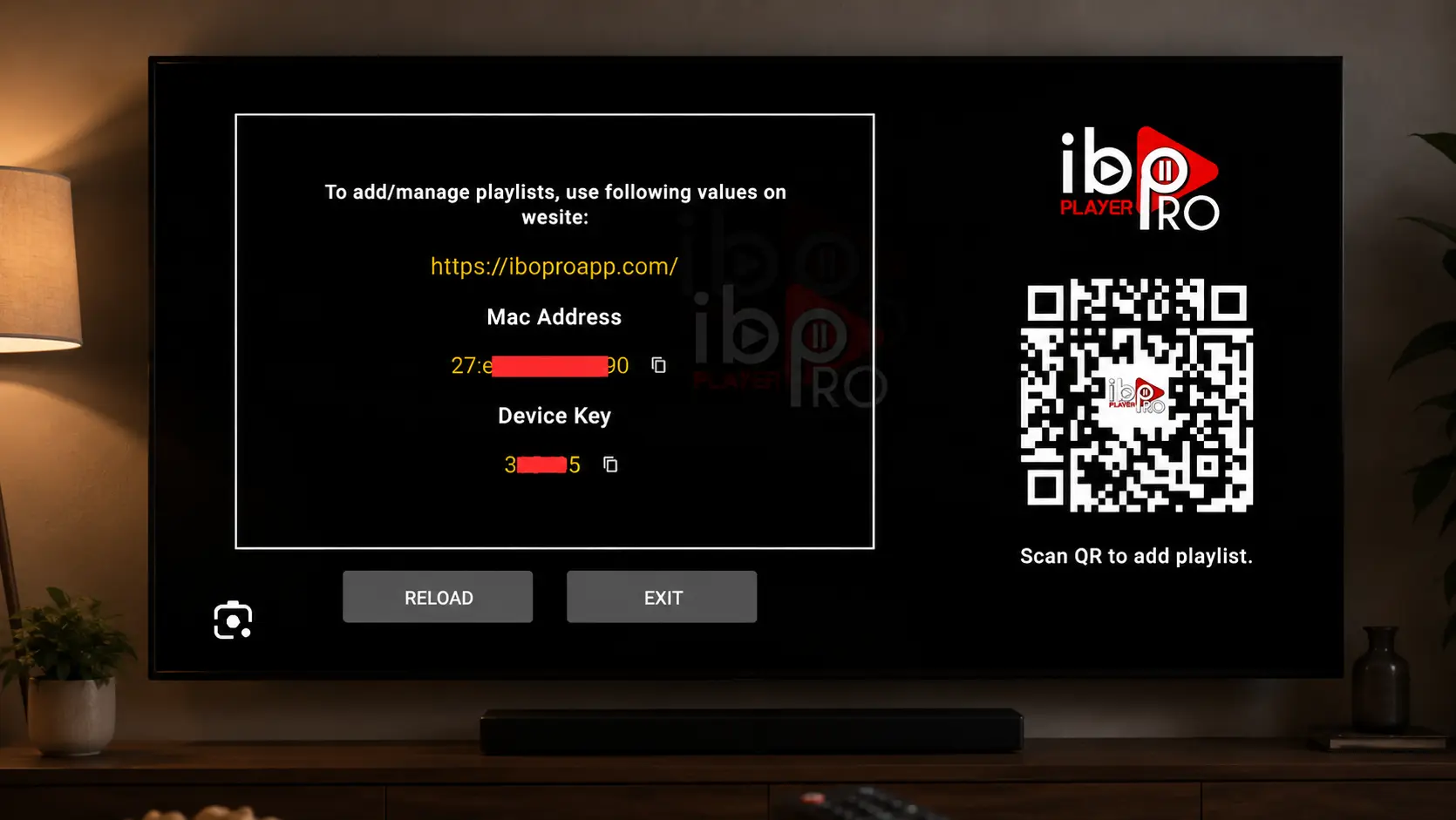
Launch the app
Open IBO Player and accept the on-screen permissions.
Note your MAC address
The home screen shows a MAC Address (your device ID) — write it down exactly.
Note your device key
You'll also see a Device Key. Keep both handy for the next step.
Step 2: Activate IBO Player on the web portal
Now switch to your phone or computer. This is where you tell the app which playlist to load, without typing anything on the TV:
Open the activation page
In a browser go to the IBO Player activation website — iboplayer.com for IBO Player, or the IBO Pro portal (iboproapp.com) if you installed IBO Player Pro.
Log in with your details
Enter the MAC address and device key from Step 1 to open your device's playlist manager.
Choose "Add playlist"
Select Add Playlist to link your IPTV subscription to this device.
Step 3 (Method A): Add an Xtream Codes playlist
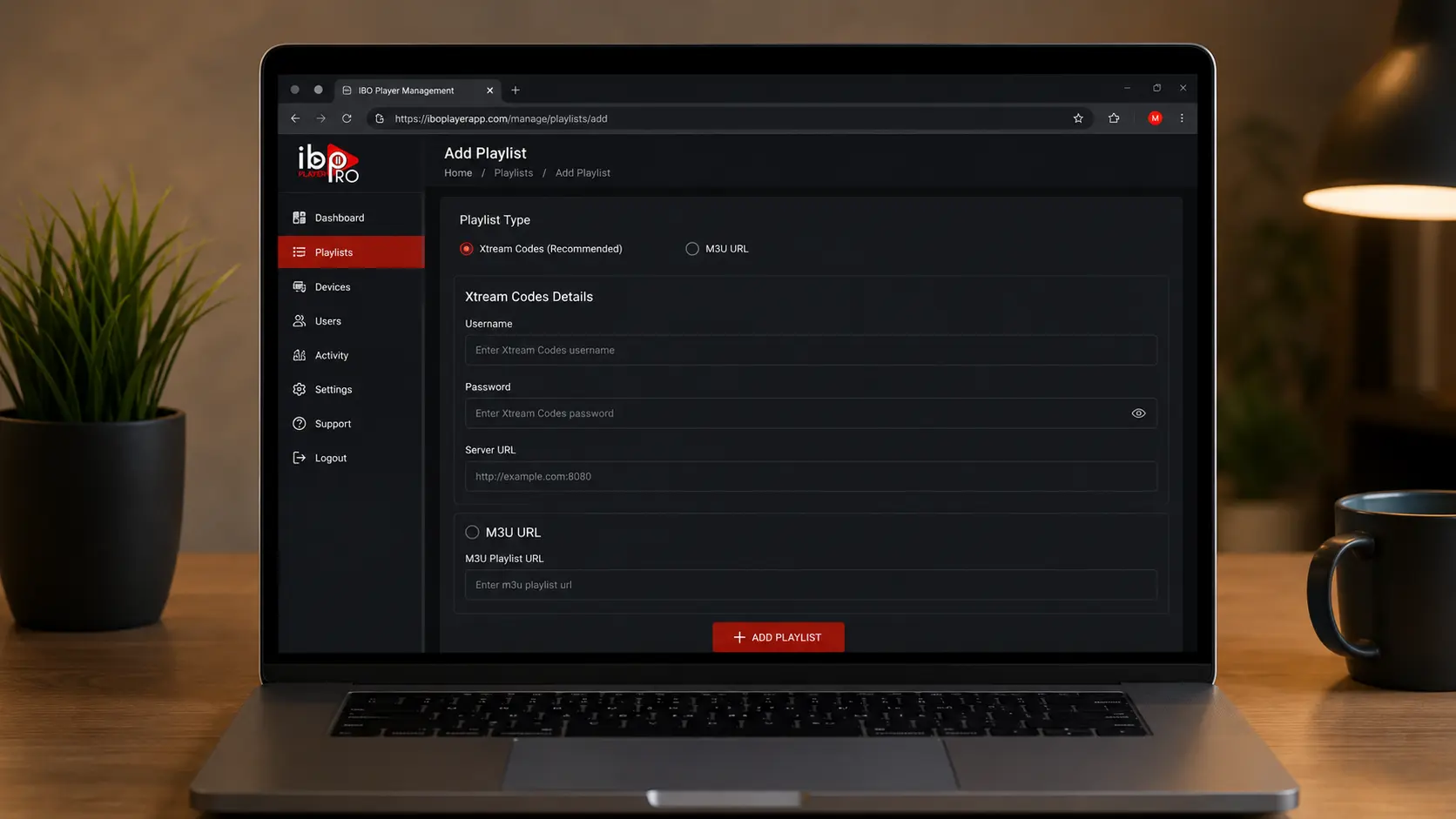
Xtream Codes is the tidiest option because it loads live channels, VOD and the EPG in organised categories:
Pick Xtream Codes
On the Add Playlist screen choose Xtream Codes API.
Enter your details
Add a playlist name, then your username, password and server URL from your provider.
Save
Click Add / Save. Your playlist is now attached to your device.
Step 3 (Method B): Add an M3U URL instead
If you only have a single M3U link, that works just as well here:
Pick M3U
On the Add Playlist screen choose M3U URL.
Paste the link
Give the playlist a name and paste your full M3U URL.
Save
Click Add / Save to attach it to your device.
Step 4: Set up the EPG (TV guide)
A TV guide makes it far nicer to use, giving you a now-and-next grid and programme descriptions. If you added your playlist with Xtream Codes, the EPG usually loads automatically. If you used an M3U link, add your provider's XMLTV EPG URL in the playlist's EPG field on the portal, then save.
If your programme times look an hour or two off, that's almost always a time-zone mismatch rather than a fault — set the correct time offset / GMT for your playlist and the guide will line up with the local schedule. An empty guide usually means the EPG URL is missing or mistyped, so double-check it against the link your provider sent.
Step 5: Reload IBO Player and watch live TV
Head back to your TV and open the app. Either restart the app or choose Reload / Refresh, and your new playlist appears with live channels, movie and series categories and the EPG. Your setup is complete — select a group, pick a channel and it plays.
The first time you open a big playlist, give it a few seconds to import everything — lists with tens of thousands of channels can take a moment. After that, switching channels is instant, and you can jump between live sport, news, movies and international channels from the same tidy interface. That one-app simplicity is exactly why so many people set it up on their main TV.
Organise channels, groups and favourites
A little housekeeping makes it much nicer to live with day to day:
- Groups — most playlists arrive pre-sorted into groups such as Sports, Movies, News and 4K. Use the category menu to jump straight to what you want.
- Favourites — mark the channels you watch most so they sit at the top of your list for one-click access.
- Multiple playlists — you can attach more than one playlist to a single device from the portal, handy if you run separate subscriptions.
- Search — use the in-app search to find a specific match, film or channel across thousands of streams.
Because your playlist and favourites live in your account online, they stay put even if you reinstall the app or move to a new TV.
How to refresh or update your playlist
IPTV providers add and remove channels regularly, so occasionally your list can fall out of date. You don't need to re-activate — just refresh:
Reload in the app
Open the app and choose Reload playlist (or restart the app) to pull the latest channels.
Or refresh on the portal
Log back into the activation site with your MAC and key, open your playlist and choose Refresh / Update.
Check your details
If channels vanish entirely, confirm your subscription is still active and the Xtream Codes or M3U URL hasn't changed.
Because the playlist is stored against your device online, a quick reload is usually all it takes to bring your channel list and EPG back up to date.
Video guide: IBO Player setup
Prefer to watch instead of read? This short video walks through installing and activating IBO Player from start to finish:
Xtream Codes vs M3U on IBO Player: which should you use?
Both methods feed the same app, so you can't really go wrong — but they behave a little differently:
| Feature | Xtream Codes | M3U playlist |
|---|---|---|
| Setup | Username + password + server URL | Paste one URL |
| Channel categories | Usually cleaner, auto-sorted | Depends on the playlist |
| EPG | Often pulled automatically | Add the XMLTV URL separately |
| VOD (movies & series) | Well organised | Varies by playlist |
| Best for | The most complete IBO Player setup | A quick, universal link |
Our advice: if your provider gives you Xtream Codes, use them for the tidiest categories, VOD and guide. If you only have an M3U link, that's completely fine for live TV here — just remember to add the EPG URL yourself.
IBO Player free trial & activation cost
IBO Player is not a subscription for channels — it's a one-off charge for the app itself. When you first activate, you get a 7-day free trial so you can test your playlist. After the trial, there's a small one-time lifetime activation fee paid to the app developer (typically only a few dollars) to keep that device active — there's no monthly app fee after that.
It's important to keep the two costs separate: the tiny app fee unlocks the player, while your IPTV subscription is what actually provides the channels, movies and EPG. You need both — a one-time activation and an active IPTV plan.
Best settings for smooth playback
- Use a strong connection — 25 Mbps or faster, and wired Ethernet where you can, especially for live sport.
- Match the stream quality — pick FHD/HD streams on older TVs and 4K only where your TV and line can handle it.
- Keep IBO Player updated — newer app versions improve stability and codec support.
- Restart occasionally — a quick app restart clears the buffer and often fixes short-term stutter.
Most playback problems come down to the connection or the provider's server rather than the app. A 4K stream needs a genuinely fast, steady line; if your Wi-Fi drops even briefly you'll see buffering. Where possible, put your TV or box on Ethernet, keep it within reach of the router, and choose an IPTV provider with anti-freeze servers so peak-time sport stays smooth.
Troubleshooting IBO Player
| Problem | Likely cause | Fix |
|---|---|---|
| No channels after activation | Playlist not added / not reloaded | Add the playlist on the portal, then reload the app |
| "Device not found" on the portal | Wrong MAC or device key | Re-enter the exact MAC and key shown in the app |
| Wrong M3U / Xtream details | Typo or expired plan | Re-check the URL and that your subscription is active |
| No EPG | Missing XMLTV URL / offset | Add the EPG URL and set the correct time offset |
| Buffering | Slow connection / weak server | Use 25 Mbps+ and an anti-freeze provider |
| Trial expired | Activation fee not paid | Pay the one-time IBO Player fee to keep the device active |
When something breaks, work from the outside in: confirm your subscription is still active, test the same M3U or Xtream Codes in another player, then re-check the details on the portal for a stray space or typo. Nine times out of ten an "IBO Player problem" is really an expired plan, a mistyped key or a playlist that simply needs reloading.
Key takeaways
- IBO Player is a player only — it has no channels of its own.
- Activate it with your MAC address and device key on the IBO Player website.
- Add your playlist with Xtream Codes or an M3U URL, plus an EPG.
- It runs on Samsung, LG, Firestick, Android TV, Android and iOS.
- You still need an active IPTV subscription with anti-freeze servers.
Is IBO Player legal?
IBO Player itself is a legitimate app — it's just a media player, much like a browser is just a browser. What matters is the subscription you load into it: a properly licensed IPTV service is completely fine, while unofficial "free" playlists that rebroadcast pay-TV are not. To stay on the right side of the line, use it with a legitimate provider and avoid pirate playlists. For a plain-English rundown of the rules, see our guide on whether IPTV is legal in Australia.
IBO Player vs TiviMate vs IPTV Smarters Pro
IBO Player is brilliantly simple, but it isn't the only option. Here's how the most popular players compare:
| App | Best for | Notes |
|---|---|---|
| IBO Player | Samsung & LG Smart TVs | Web-based activation, no sideloading, small one-time fee |
| TiviMate | A slick, TV-style live guide | Best on Firestick/Android TV — see our TiviMate guide |
| IPTV Smarters Pro | Simple setup on any device | Great on phones, Smart TVs & Firestick |
If you're on a Samsung or LG TV and want the easiest possible setup, IBO Player is hard to beat. If you're on a Firestick or Android box and want the cleanest live-TV grid, TiviMate may suit you better, while IPTV Smarters Pro is the jack-of-all-trades. The good news: the same IPTV subscription works across all of them.
Related IPTV guides
Keep exploring — these guides pair perfectly with your IBO Player setup:
Frequently asked questions
What is IBO Player?
IBO Player is an IPTV player app for Smart TVs, Firestick, Android and iOS. It has no channels of its own — you activate it with your MAC address and device key, then load your own IPTV subscription via M3U or Xtream Codes.
How do I activate IBO Player?
Open IBO Player to see your MAC address and device key. On a phone or PC, go to the activation page, log in with those details and add your M3U or Xtream Codes playlist. Reload the app to see your channels.
Is IBO Player free?
IBO Player offers a 7-day free trial. After that there's a small one-time lifetime activation fee paid to the app developer. You still need a separate IPTV subscription for the actual channels.
Does IBO Player include channels?
No. IBO Player is only a player. You must add your own IPTV subscription, such as an IPTV Australia 4K plan, using an M3U URL or Xtream Codes.
M3U or Xtream Codes on IBO Player — which is better?
Both work. Xtream Codes usually loads categories, VOD and the EPG more cleanly, while an M3U URL is a quick single-link setup. If your provider gives you Xtream Codes, use them.
Can I use IBO Player on a Samsung or LG TV?
Yes — that's where IBO Player is most popular. Install it from the Samsung Apps or LG Content Store, then activate online with your MAC address and device key. No sideloading needed.
Why are there no channels after I activated IBO Player?
You've activated the device but not attached a playlist, or the app hasn't refreshed. Add your M3U or Xtream Codes on the portal, then reload IBO Player on your TV.
Can I add more than one playlist to IBO Player?
Yes. From the activation portal you can attach multiple playlists to the same device, which is useful if you run more than one IPTV subscription.
Does IBO Player have movies and series (VOD)?
Yes, if your provider offers VOD. Adding your playlist with Xtream Codes gives IBO Player the best-organised movies and series categories alongside live TV.
Power IBO Player with a great subscription
65,000+ channels, 4K streams and anti-freeze servers — perfect for IBO Player. From $14.99/month with a 7-day money-back guarantee.
Get Started with IPTV Australia 4K →