
If you want a fast, reliable way to watch live TV, sports, movies and series on your TV, installing IPTV Smarters Pro for Firestick is the easiest route. This in-depth guide walks you through the entire process from start to finish — two proven install methods, how to log in with Xtream Codes or an M3U URL, how to load the EPG (TV guide), the best settings to avoid buffering, whether you need a VPN, and a complete troubleshooting section. By the end, your Amazon Fire TV Stick will be ready to stream in glorious 4K.
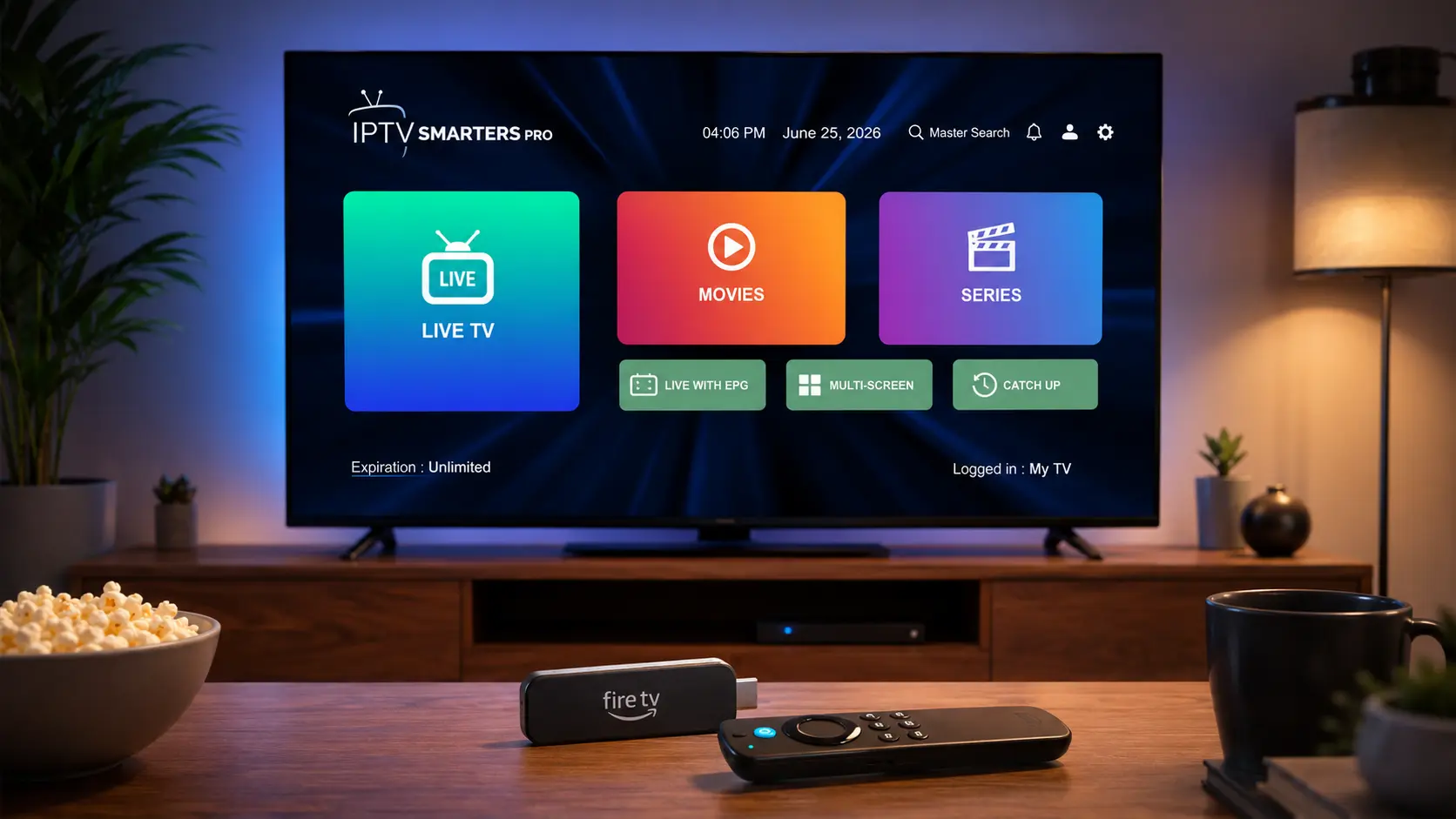
What is IPTV Smarters Pro?
IPTV Smarters Pro is one of the most widely used IPTV player apps in the world. It is a media player — not a content provider — which means it gives you a polished interface to watch the channels and video-on-demand (VOD) supplied by your IPTV subscription. When you run the IPTV Smarters Pro app for Firestick, your Amazon Fire TV Stick becomes a complete entertainment hub with Live TV, Movies, Series and a built-in TV guide, all neatly organised in one place.
The app supports both Xtream Codes API logins and M3U playlist URLs, includes a 7-day EPG (Electronic Program Guide), supports external players, multi-screen layouts, parental controls and catch-up TV. Because it is lightweight and optimised for Android-based devices, IPTV Smarters Pro runs smoothly on every Fire TV Stick model.
IPTV Smarters Pro vs IPTV Smarters Lite
Many users get confused between the two versions. Both are made for streaming, but there are differences worth knowing before you install IPTV Smarters Pro on your Firestick:
| Feature | IPTV Smarters Pro | IPTV Smarters Lite |
|---|---|---|
| Interface | Full dashboard (Live, Movies, Series, EPG) | Simplified, lighter layout |
| EPG / TV guide | Yes, 7-day guide | Yes |
| Catch-up TV | Supported | Limited |
| External players | VLC, MX Player & more | Supported |
| Best for | Most users & bigger libraries | Older, low-RAM devices |
For the majority of Firestick owners, IPTV Smarters Pro is the better choice thanks to its richer feature set. If you have a very old, low-memory device, the Lite version can run a little lighter.
Why use IPTV Smarters Pro on Firestick
The Amazon Fire TV Stick is the most affordable and popular way to bring IPTV to any television. Pairing it with IPTV Smarters Pro for Firestick gives you a fast, reliable, plug-and-play setup that works on virtually any TV with an HDMI port.
Plug & play
Works on any TV with HDMI — no extra hardware required.
Clean interface
Live TV, Movies, Series and EPG all in one tidy layout.
4K & Full HD
Smooth playback up to 4K UHD on a fast connection.
Auto updates
Channels and VOD refresh automatically after login.
Remote friendly
Designed for the Fire TV remote — easy to navigate.
Low cost
A Firestick plus IPTV costs a fraction of cable TV.
Which Firestick models are supported?
IPTV Smarters Pro runs on every current Amazon Fire TV Stick. Here's how the models compare for streaming performance:
| Firestick model | Max resolution | Performance |
|---|---|---|
| Fire TV Stick Lite | Full HD (1080p) | Good for HD streaming |
| Fire TV Stick (3rd gen) | Full HD (1080p) | Smooth for most channels |
| Fire TV Stick 4K | 4K UHD | Great for 4K & large libraries |
| Fire TV Stick 4K Max | 4K UHD | Best — fastest CPU & most RAM |
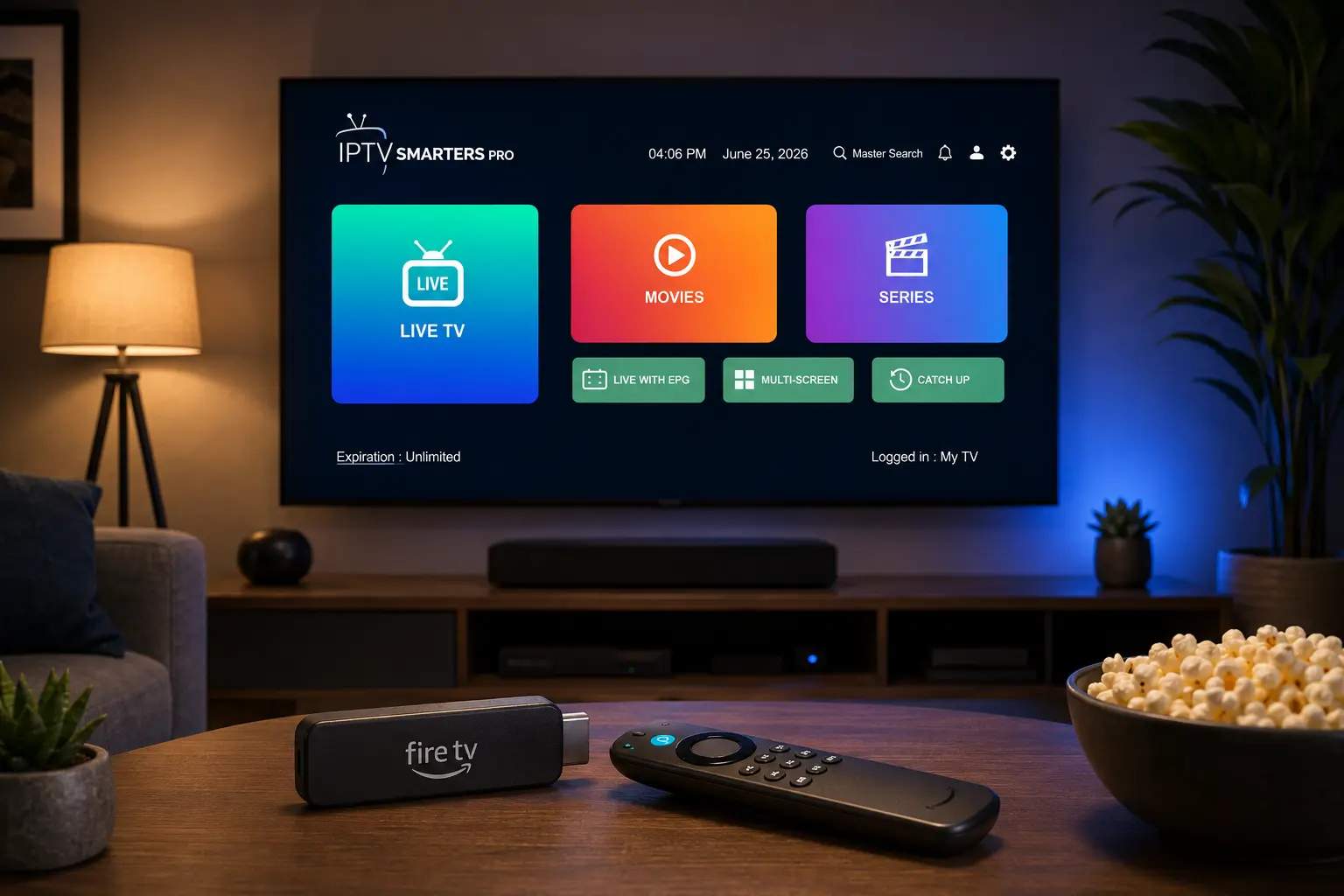
If you stream a lot of 4K content or browse big VOD libraries, the Fire TV Stick 4K Max gives the smoothest IPTV Smarters Pro for Firestick experience.
Before you start: what you need
To install and set up IPTV Smarters Pro on your Firestick without hiccups, make sure you have the following ready:
- An Amazon Fire TV Stick connected to your TV's HDMI port and to the internet.
- A stable connection of 25 Mbps or faster (50 Mbps+ recommended for 4K streaming).
- Your IPTV login details from your provider — either Xtream Codes (username, password and server URL) or an M3U URL.
- About 5 minutes and your Fire TV remote.
Method 1: Install IPTV Smarters Pro using the Downloader app
This is the most reliable way to install IPTV Smarters Pro for Firestick. The Downloader app lets you sideload the official APK in a couple of minutes.
-
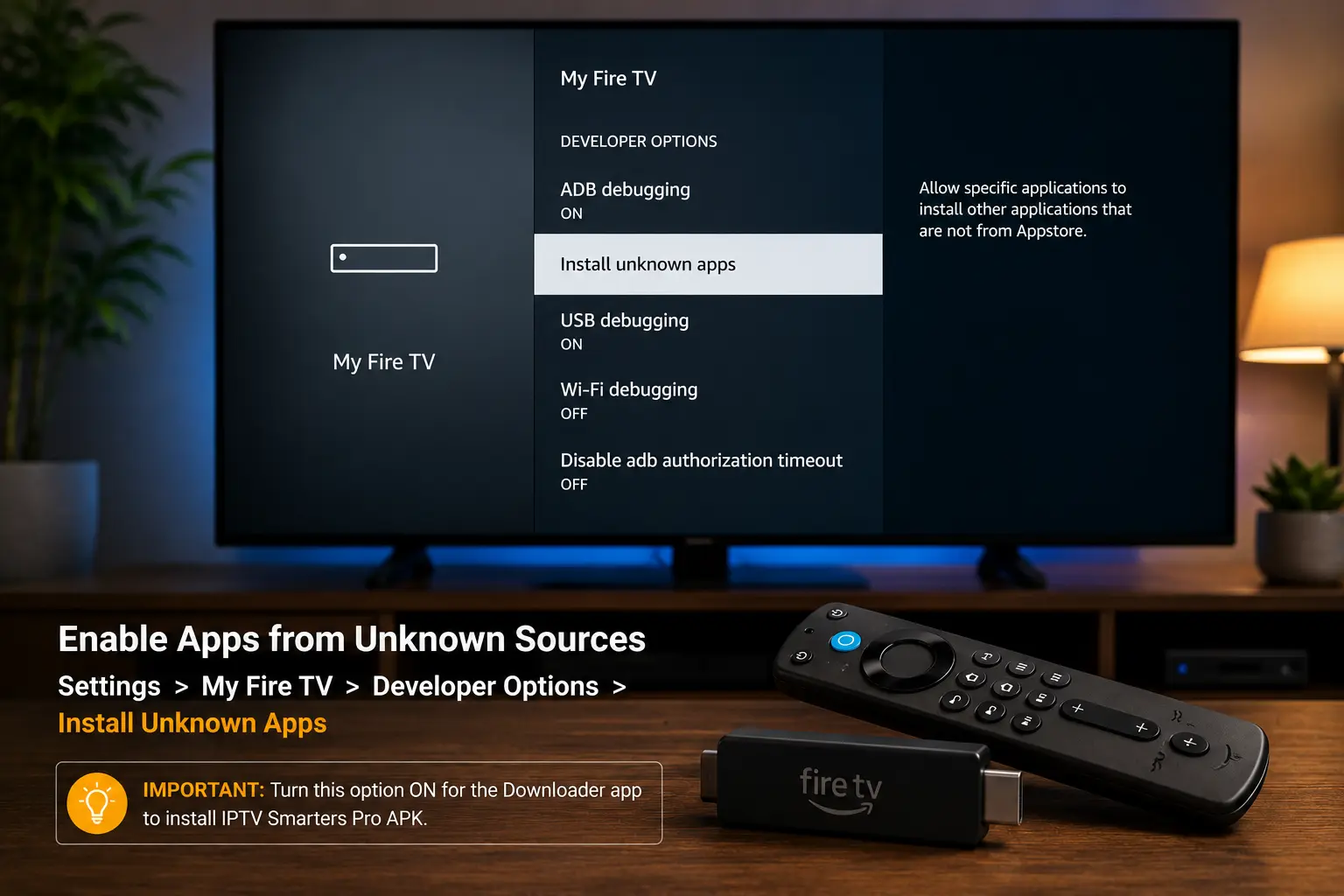
Enable apps from unknown sources
From the Firestick home screen go to Settings → My Fire TV → Developer Options, then turn on Install Unknown Apps (or "Apps from Unknown Sources") for the Downloader app.

Turn the toggle ON so your Firestick can install the IPTV Smarters Pro APK. -
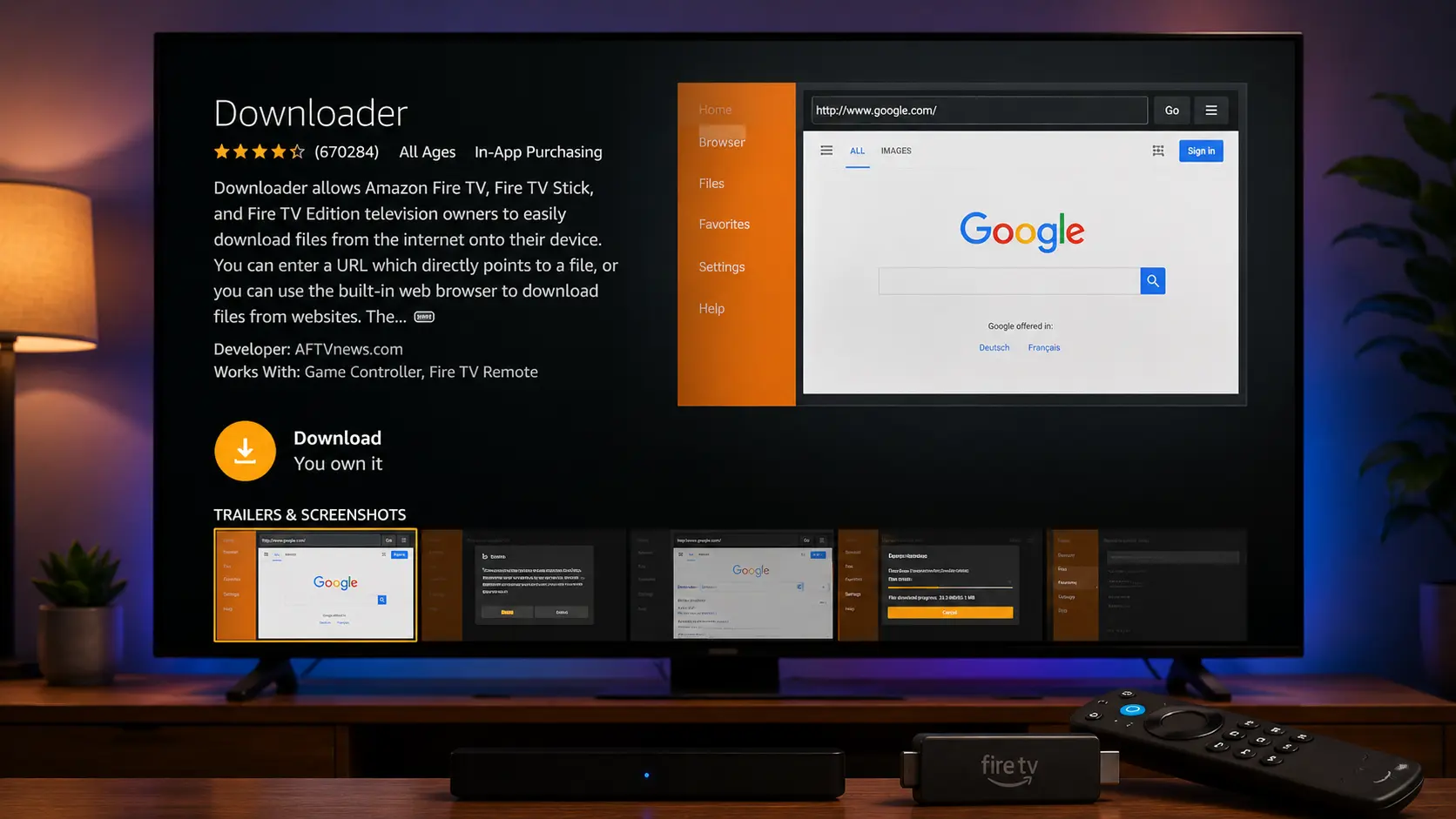
Install the Downloader app
Go back to the home screen, open Find → Search, type Downloader, select the orange Downloader icon and click Download / Get to install it.
-
Enter the IPTV Smarters Pro APK link
Open Downloader, select the URL bar, and type the official IPTV Smarters Pro APK address. Press Go to begin downloading the file.
Type the official APK link in Downloader and press Go. -
Install the app
When the download finishes, the installer opens automatically. Click Install, wait a few seconds, then choose Done. You can delete the APK file to save space when prompted.
-
Open IPTV Smarters Pro
Find the app under Apps & Channels on your Firestick. Open it, accept the terms, and you're ready to log in.
Method 2: Install from the Amazon App Store
On some regions and devices, an IPTV player is available directly in the Amazon Appstore, which is the simplest method if you'd rather not sideload:
-
Open the search
From the Firestick home screen, select the search (magnifying glass) icon in the top-left corner.
-
Search for the app
Type IPTV Smarters and select the matching result from the suggestions.
-
Download & open
Click Get / Download, wait for it to install, then choose Open to launch the app.
How to log in to IPTV Smarters Pro
Once the app is open, you choose how to load your channels. The IPTV Smarters Pro Firestick app supports two login methods — pick the one that matches the details your provider gave you:
| Login method | What you enter | Best for |
|---|---|---|
| Login with Xtream Codes API | Any name, username, password & server URL | Full EPG, catch-up & VOD (recommended) |
| Load Your Playlist (M3U URL) | Any name & a single M3U link | Quick setup, lighter guide data |
Step-by-step login (Xtream Codes)
- On the welcome screen, choose Login with Xtream Codes API.
- Type any name in the Name field (e.g. "My TV").
- Enter the Username, Password and Server URL exactly as your provider sent them — including
http://and the port number. - Click Add User. Your channels, movies and series load within seconds.
Adding the EPG (TV guide)
The EPG (Electronic Program Guide) shows what's on now and next for each channel. When you log in with Xtream Codes, the EPG usually loads automatically. If it doesn't appear, add it manually:
- Open Settings → General → EPG inside IPTV Smarters Pro.
- Paste the EPG URL (XMLTV) your provider supplies.
- Save, then refresh the guide. The program data should populate within a minute.
A working guide makes IPTV Smarters Pro for Firestick far easier to navigate, especially across thousands of live channels.
Getting around the IPTV Smarters Pro for Firestick interface
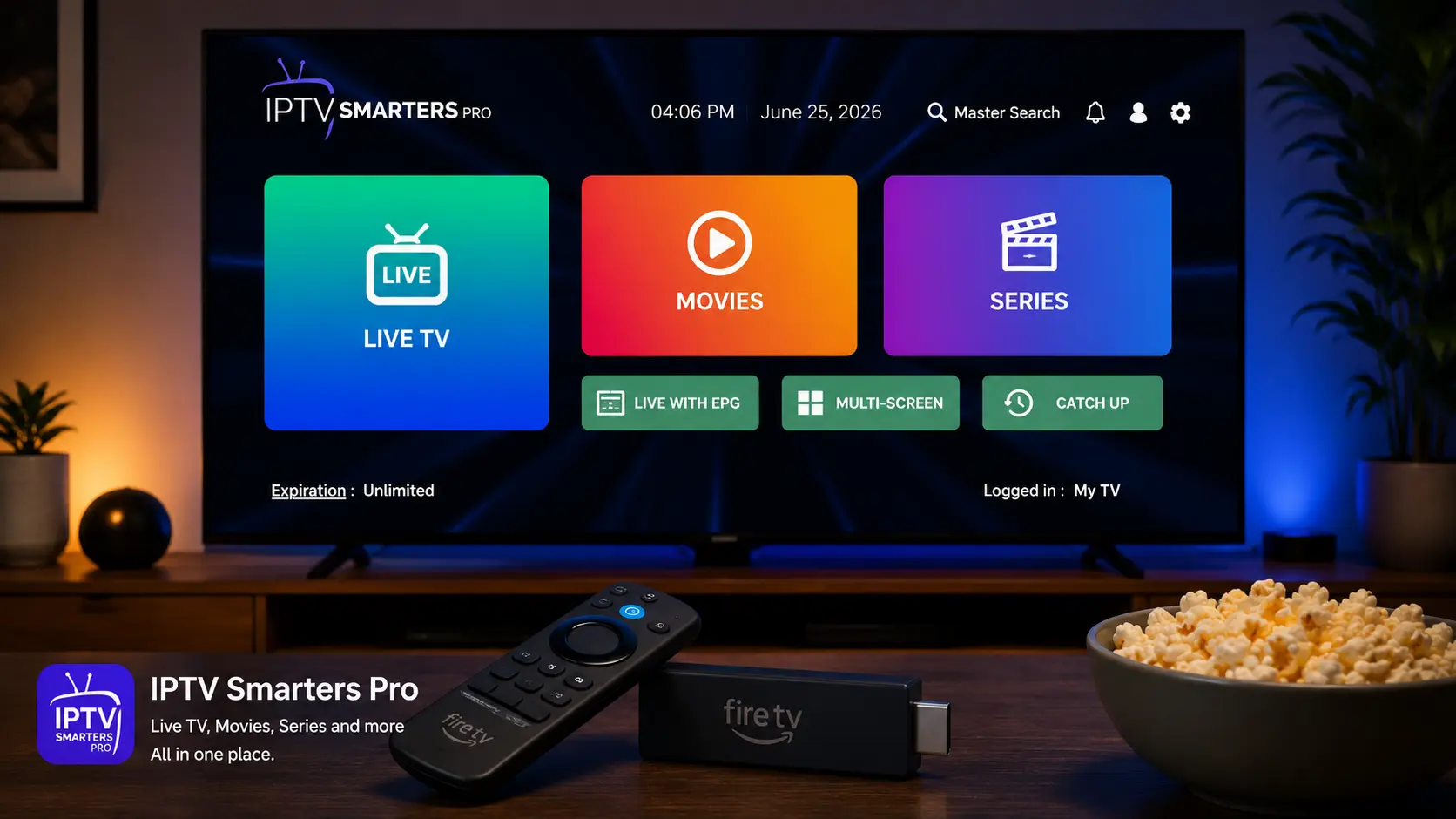
After logging in, you'll land on the main dashboard. Here's what each section does:
- Live TV — all your live channels, grouped into categories with the EPG.
- Movies (VOD) — on-demand films, searchable and organised by genre.
- Series — full TV series with seasons and episodes.
- Catch-up — rewind and watch programs that already aired (if your plan supports it).
- Multi-Screen — view several channels at once on supported devices.
Use the Fire TV remote's menu/options button while a channel is playing to switch audio tracks, change the aspect ratio, or pick a different player.
Best settings & should you use a VPN?
Recommended playback settings
- Set the default player to the built-in player first; if a channel stutters, switch to VLC or MX Player for that stream.
- Turn on Auto-start on boot only if IPTV is your main use for the Firestick.
- Enable hardware decoding where available for smoother 4K playback.
- Keep the app updated to the latest APK for bug fixes and performance.
Do you need a VPN?
A VPN is optional but recommended when running IPTV Smarters Pro for Firestick. It encrypts your traffic, protects your privacy, and can reduce ISP throttling that some providers apply to streaming. To use one, install a VPN app from the Amazon Appstore on your Firestick, connect to a nearby server, then open IPTV Smarters Pro as normal.
Troubleshooting: stop IPTV Smarters Pro buffering on Firestick
Buffering and freezing are almost always caused by your connection, your device's memory, or the provider's server — not the app itself. Work through this table to fix the most common IPTV Smarters Pro for Firestick issues:
| Problem | Likely cause | Fix |
|---|---|---|
| Constant buffering | Slow internet or weak Wi-Fi | Test speed (aim 25 Mbps+), move closer to the router or use Ethernet |
| Freezing during live sports | Overloaded provider server | Switch to a provider with anti-freeze servers |
| App lags / crashes | Low memory on older Firestick | Restart, clear cache, close background apps |
| "Invalid login" error | Typo or expired plan | Re-check Xtream details & confirm subscription is active |
| No EPG / wrong guide | Missing EPG URL | Add the XMLTV EPG link under Settings → General → EPG |
| Black screen on a channel | Codec not supported by default player | Long-press the channel and switch to VLC / MX Player |
Key features of IPTV Smarters Pro
Beyond the basics, IPTV Smarters Pro for Firestick packs plenty of useful tools:
- 7-day EPG with a full program guide for live channels.
- Catch-up TV to rewind shows that already aired.
- External player support (VLC, MX Player) for tricky streams.
- Parental controls to lock adult or specific categories.
- Multi-screen viewing on capable devices.
- Favourites & search to jump straight to the channels you watch most.
- Automatic updates of your channel list and VOD library.
Is IPTV Smarters Pro safe and legal?
IPTV Smarters Pro for Firestick itself is completely legal and safe — it's just a media player, similar to VLC. What matters is the source of your content. Always use a provider that streams properly licensed channels and VOD, and avoid suspicious "free" M3U lists that infringe copyright and are often riddled with malware. A reputable IPTV provider in Australia is transparent about its content and offers genuine customer support and a money-back guarantee.
Key takeaways
- IPTV Smarters Pro for Firestick is free to install — but it only works once you add an active IPTV Australia subscription.
- Use the Downloader app (Method 1) for the most reliable install.
- Log in with Xtream Codes for the best experience, including full EPG and catch-up.
- Most buffering comes from your connection or the provider's server, not the app.
- Choose a provider with stable, anti-freeze servers for smooth 4K streaming.
More IPTV Smarters Pro guides
IPTV Smarters Pro runs on all your screens. Got it working on Firestick? Here are the step-by-step guides for setting it up on your other devices too — from Smart TV to Android TV:
Frequently asked questions
Is IPTV Smarters Pro free on Firestick?
Yes — the app is free to download and install. You still need an active IPTV subscription to load channels and video-on-demand.
Why does IPTV Smarters Pro keep buffering on Firestick?
Usually a slow connection, an overloaded server, or low memory on older devices. Use 25 Mbps or faster, restart the Firestick, clear the cache, and pick a provider with stable anti-freeze servers.
How do I add EPG to IPTV Smarters Pro on Firestick?
With Xtream Codes login the EPG loads automatically. Otherwise add your provider's XMLTV EPG URL under Settings → General → EPG and refresh.
Does IPTV Smarters Pro work on all Firestick models?
Yes — it runs on the Fire TV Stick Lite, Fire TV Stick, Fire TV Stick 4K and 4K Max. The 4K Max gives the smoothest 4K playback thanks to more RAM and a faster processor.
Do I need a VPN for IPTV Smarters Pro on Firestick?
A VPN is optional but recommended. It encrypts your connection, can reduce ISP throttling, and protects your privacy. Install the VPN app on the Firestick, connect, then open IPTV Smarters Pro.
How do I update IPTV Smarters Pro on Firestick?
Re-download the latest APK through the Downloader app and install it over the existing version. Your login profiles and settings are kept.
Can I use IPTV Smarters Pro on more than one device?
Yes, but the number of simultaneous streams depends on your plan. Multi-connection plans let you watch on the Firestick, phone and tablet at the same time.
Ready to stream on your Firestick?
65,000+ channels, 120,000+ movies & series, 4K streams and anti-freeze servers — built for IPTV Smarters Pro.
Get Started with IPTV Australia 4K →