
If you want a slick, TV-first way to watch live channels, TiviMate IPTV Player is one of the best apps you can install. Loved for its polished interface and outstanding TV guide, TiviMate turns your Firestick or Android TV into a premium IPTV box. This 2026 guide shows you exactly how to install TiviMate IPTV Player, add your playlist, set up the EPG, unlock premium features and fix buffering — plus how it compares to IPTV Smarters Pro.
What is TiviMate IPTV Player?
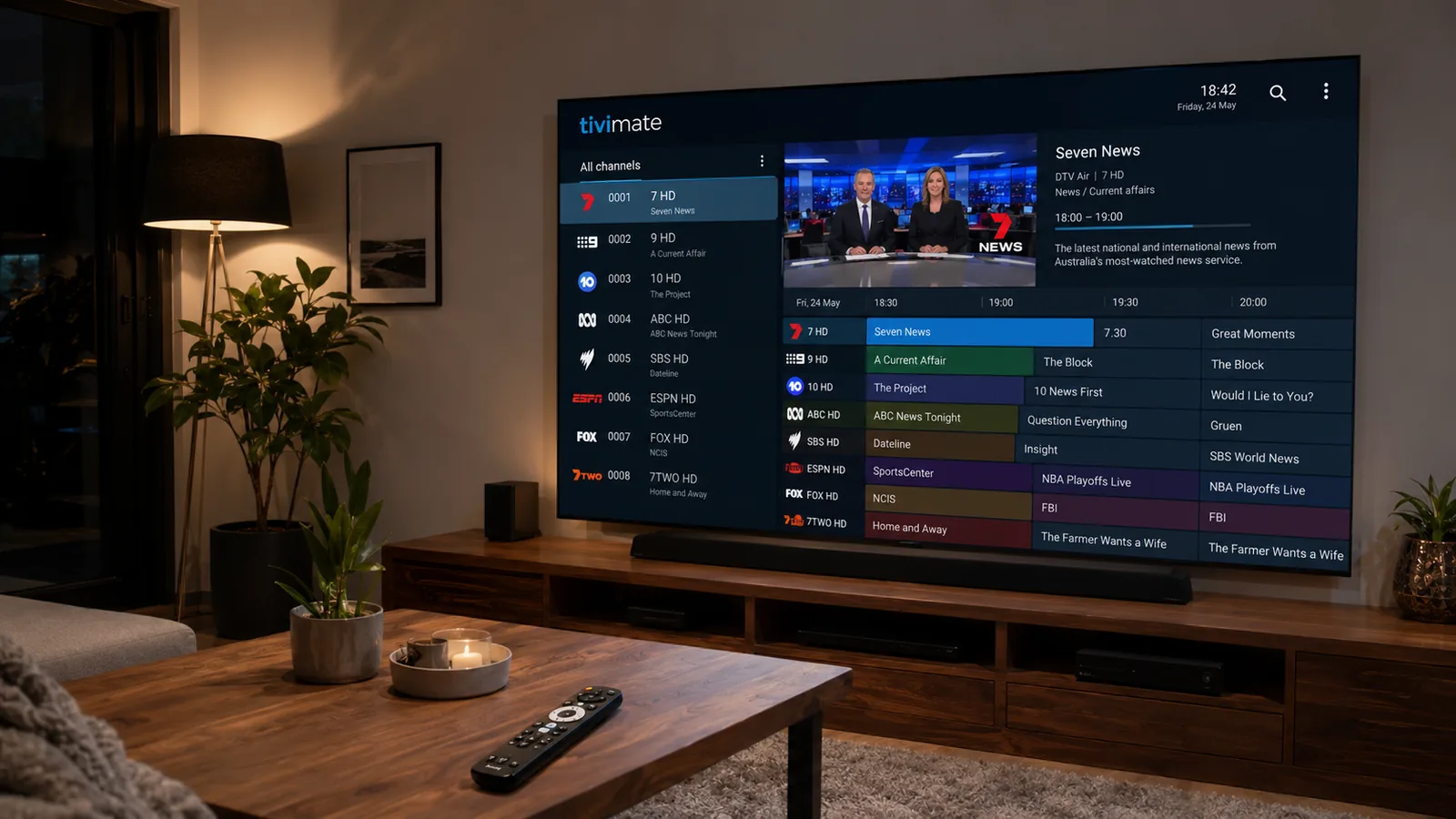
TiviMate IPTV Player is a premium IPTV player built for the big screen. It doesn't supply channels itself — instead you load the playlist from your IPTV subscription, and it gives you a beautiful live-TV interface with a full TV guide (EPG), favourites, catch-up and (with Premium) recording. For many users it's the gold standard IPTV player on Android TV and Firestick.
Which devices does TiviMate work on?
This is important: TiviMate is an Android app only. It runs beautifully on TV-style Android devices, but there is no iPhone, iPad or Apple TV version.
Android TV
Sony, Philips, TCL, Hisense, Nvidia Shield.
Fire TV / Firestick
All Amazon Fire TV Stick models.
Android phone / tablet
Works in landscape on Android mobiles.
TiviMate Free vs Premium
TiviMate comes in two tiers. The free version is great for getting started; Premium unlocks the power features:
| Feature | Free | Premium |
|---|---|---|
| Live TV & EPG | Yes | Yes |
| Multiple playlists | 1 only | Unlimited |
| Recording & scheduler | No | Yes |
| Custom EPG sources | Limited | Full |
| Internal player options | Basic | Advanced |
Before you start
- An Android TV or Firestick connected to the internet.
- A stable connection of 25 Mbps or faster (50 Mbps+ for 4K).
- Your IPTV login — an Xtream Codes or M3U URL from your provider.
Method 1: Install TiviMate on Android TV
Open the Google Play Store
From your Android TV home screen, open the Play Store.
Search for it
Search TiviMate and select the official app.
Install & open
Choose Install, then Open.
Method 2: Install TiviMate on Firestick
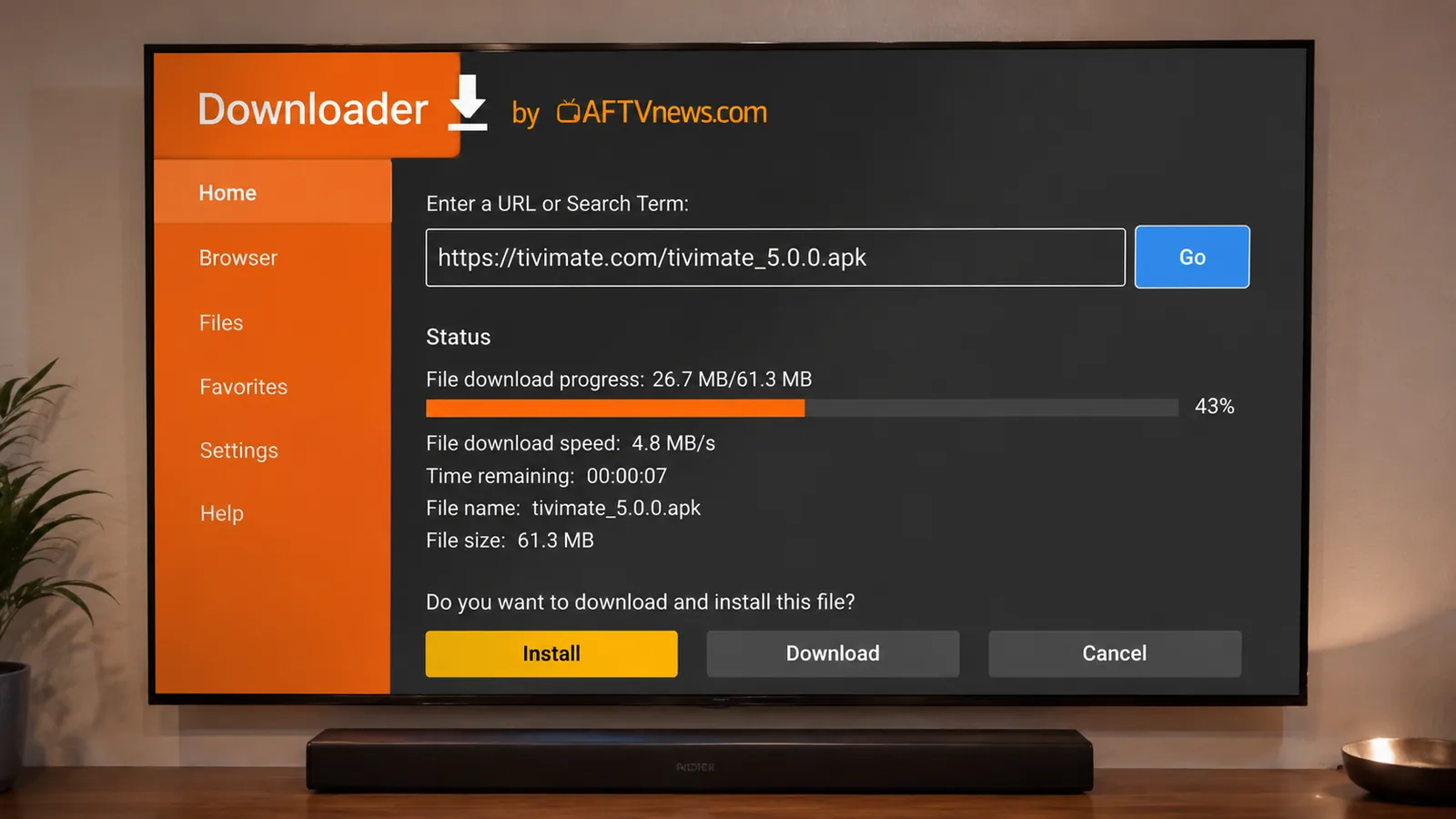
On Firestick, the easiest way is to sideload TiviMate with the Downloader app.
Allow unknown apps
Settings → My Fire TV → Developer Options → turn on Install Unknown Apps for Downloader.
Install Downloader
Search for and install the Downloader app from the Fire TV store.
Download & install TiviMate
Open Downloader, enter the official TiviMate APK link, then install it.
How to add your playlist (login)
Once TiviMate is open, you add the playlist from your IPTV subscription:
Choose "Add playlist"
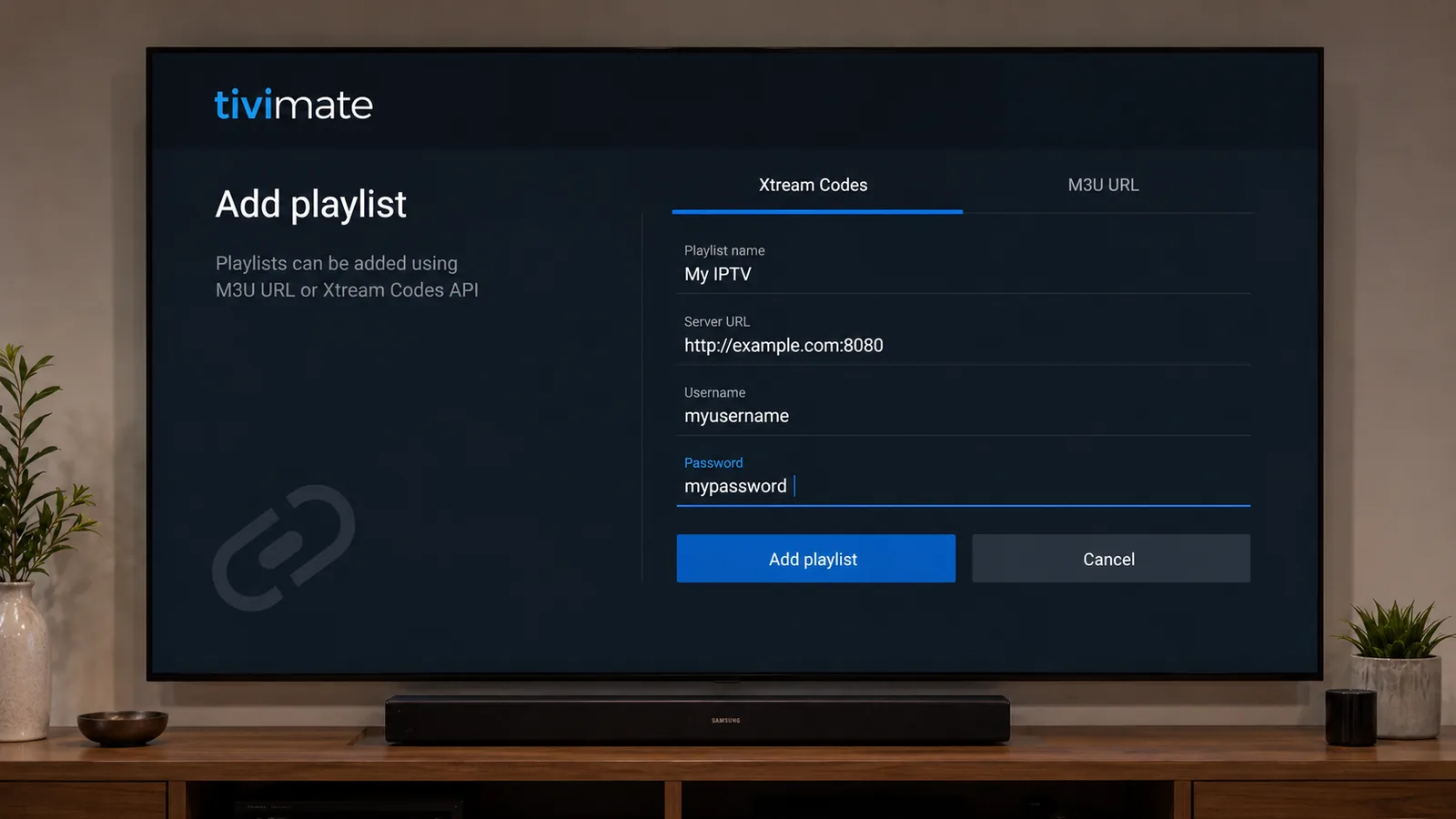
On first launch, select Add playlist.
Pick the type
Choose Xtream Codes (recommended) or M3U URL.
Enter your details
Type the username, password and server URL (or M3U link) your provider emailed you.
Confirm
TiviMate loads your channels and gives the playlist a name.
Set up the EPG (TV guide)
the app's TV guide is one of its best features. With an Xtream Codes playlist the EPG usually loads automatically. Otherwise, go to Settings → EPG → Add EPG source and paste your provider's XMLTV EPG URL, then refresh.
Customise channels, groups & favourites
One reason people love TiviMate IPTV Player is how tidy you can make a huge channel list. Once your playlist loads, you can organise everything to suit how you watch:
- Favourites — long-press a channel and add it to Favourites for instant access.
- Custom groups — create your own categories (e.g. "Sports", "Kids", "Movies") and drag channels into them (Premium).
- Reorder & hide — move the channels you watch to the top and hide the ones you don't.
- Channel logos & numbers — TiviMate pulls logos from your playlist and lets you keep provider channel numbers.
A few minutes spent here makes the app far faster to navigate with a remote.
How to record live TV on TiviMate
Recording is one of the standout TiviMate Premium features — perfect for catching a match while you're out. To record:
Open a channel
Start playing the channel you want to record.
Open the menu
Bring up the playback menu and choose Record, or schedule from the TV guide.
Pick where to save
Choose internal storage or a connected USB drive for your recordings.
Watch later
Find finished recordings under the Recordings section to play any time.
TiviMate Premium & the Companion app
TiviMate Premium unlocks the power features: recording, a scheduler, multiple playlists, advanced EPG sources and more playback options. Here's how it works:
- Free vs Premium — the free app covers live TV and EPG; Premium adds the extras above.
- Companion app — Premium is purchased through the separate TiviMate Companion app, then synced to your it install.
- One account, many devices — your Premium licence can be used across your devices.
- Pricing — Premium is a small recurring or one-off fee; it's optional and separate from your IPTV subscription.
Best TiviMate settings for smooth playback
A few tweaks help TiviMate IPTV Player run buttery-smooth, especially for live sport:
- Decoder — keep hardware decoding on; switch to software only if a channel won't play.
- Buffer size — under Settings → Playback, a slightly larger buffer can reduce stutter on busy networks.
- Default player — TiviMate's internal player is best; you can set an external player per-channel if needed.
- Auto-frame rate — on capable Android TV boxes, enable this for the smoothest motion.
- Keep it updated — newer versions fix bugs and improve stability.
Do you need a VPN with TiviMate?
A VPN is optional but recommended. It encrypts your connection, protects your privacy and can reduce ISP throttling on streaming. On Android TV or Firestick you can install a VPN app, connect to a nearby server, then open TiviMate IPTV Player as normal.
How to update TiviMate
On Android TV, TiviMate updates automatically through the Google Play Store. On Firestick, re-download the latest APK through the Downloader app and install it over the existing version — your playlists, favourites and settings are kept.
Video guide: installing TiviMate
Prefer to watch instead of read? This short video walks through installing TiviMate IPTV Player on Firestick and Android TV:
it vs IPTV Smarters Pro
Both are top IPTV players — here's how to choose:
| TiviMate | IPTV Smarters Pro | |
|---|---|---|
| Best for | TV-first live TV & EPG | All-rounder with VOD |
| Platforms | Android only | Android, iOS, Apple TV, Windows |
| Recording | Yes (Premium) | Limited |
| VOD / movies & series | Limited | Full library |
| Interface | Polished, remote-friendly | Clean, feature-rich |
On Apple devices, go with our IPTV Smarters Pro guides. On Android TV or Firestick, the player is hard to beat for live TV.
IPTV Australia 4K plans & pricing
65,000+ channels and 120,000+ movies & series — from just $14.99. 7-day money-back guarantee.
- Premium server
- 65,000+ live channels
- 120,000+ movies & series
- 4K · UHD · FHD · HD
- All devices supported
- Anti-Freezing™
- PPV & TV guide (EPG)
- 24/7 live chat support
- Premium server
- 65,000+ live channels
- 120,000+ movies & series
- 4K · UHD · FHD · HD
- All devices supported
- Anti-Freezing™
- PPV & TV guide (EPG)
- 24/7 live chat support
- Premium server
- 65,000+ live channels
- 120,000+ movies & series
- 4K · UHD · FHD · HD
- All devices supported
- Anti-Freezing™
- PPV & TV guide (EPG)
- 24/7 live chat support
- Premium server
- 65,000+ live channels
- 120,000+ movies & series
- 4K · UHD · FHD · HD
- All devices supported
- Anti-Freezing™
- PPV & TV guide (EPG)
- 24/7 live chat support
Choose 1, 2 or 3 devices above · 7-day money-back guarantee on iptvaustraliahd.com.
Troubleshooting TiviMate
| Problem | Likely cause | Fix |
|---|---|---|
| Buffering | Slow connection / weak server | Use 25 Mbps+, pick an anti-freeze provider |
| No channels load | Wrong playlist details | Re-check Xtream / M3U URL and that the plan is active |
| No EPG | Missing EPG source | Add the XMLTV EPG URL under Settings → EPG |
| Can't record | Free version | Recording needs TiviMate Premium |
Key takeaways
- TiviMate IPTV Player is a premium, TV-first player for Android TV and Firestick (not iOS/Apple).
- The app is free to install; Premium adds recording and multiple playlists.
- Add your playlist with Xtream Codes or an M3U URL from your provider.
- You still need an active IPTV Australia subscription for it to work.
- For Apple devices, use IPTV Smarters Pro instead.
Frequently asked questions
Is TiviMate free?
the app has a free version with core live TV and EPG. Premium adds recording, multiple playlists and a scheduler. You still need an IPTV subscription to load channels.
What devices does TiviMate work on?
It's an Android app — Android TV, Google TV, Fire TV / Firestick, and Android phones/tablets. It is not available for iPhone, iPad or Apple TV.
How do I add a playlist to it?
Open TiviMate, choose Add playlist, then pick Xtream Codes or M3U URL and enter the details your provider emailed you.
Is the player better than IPTV Smarters Pro?
TiviMate has a polished TV interface with great EPG and recording (Premium). IPTV Smarters Pro works on more platforms (including Apple) and includes VOD. It depends on your devices.
Why does the app keep buffering?
Usually a slow connection or an overloaded server. Use 25 Mbps or faster and choose a provider with stable anti-freeze servers.
Power TiviMate with a great subscription
65,000+ channels, 4K streams and anti-freeze servers — perfect for the app. From $14.99/month with a 7-day money-back guarantee.
Get Started with IPTV Australia 4K →