
Roku is one of the most popular streaming platforms in Australia, but it's also one of the most locked-down — there's no sideloading like on a Firestick. The good news is you have three reliable ways to watch IPTV on Roku: install a player from the official Channel Store, mirror an Android phone, or AirPlay from an iPhone. This 2026 guide walks through all three, plus how to add your M3U or Xtream Codes, load the EPG and fix buffering.
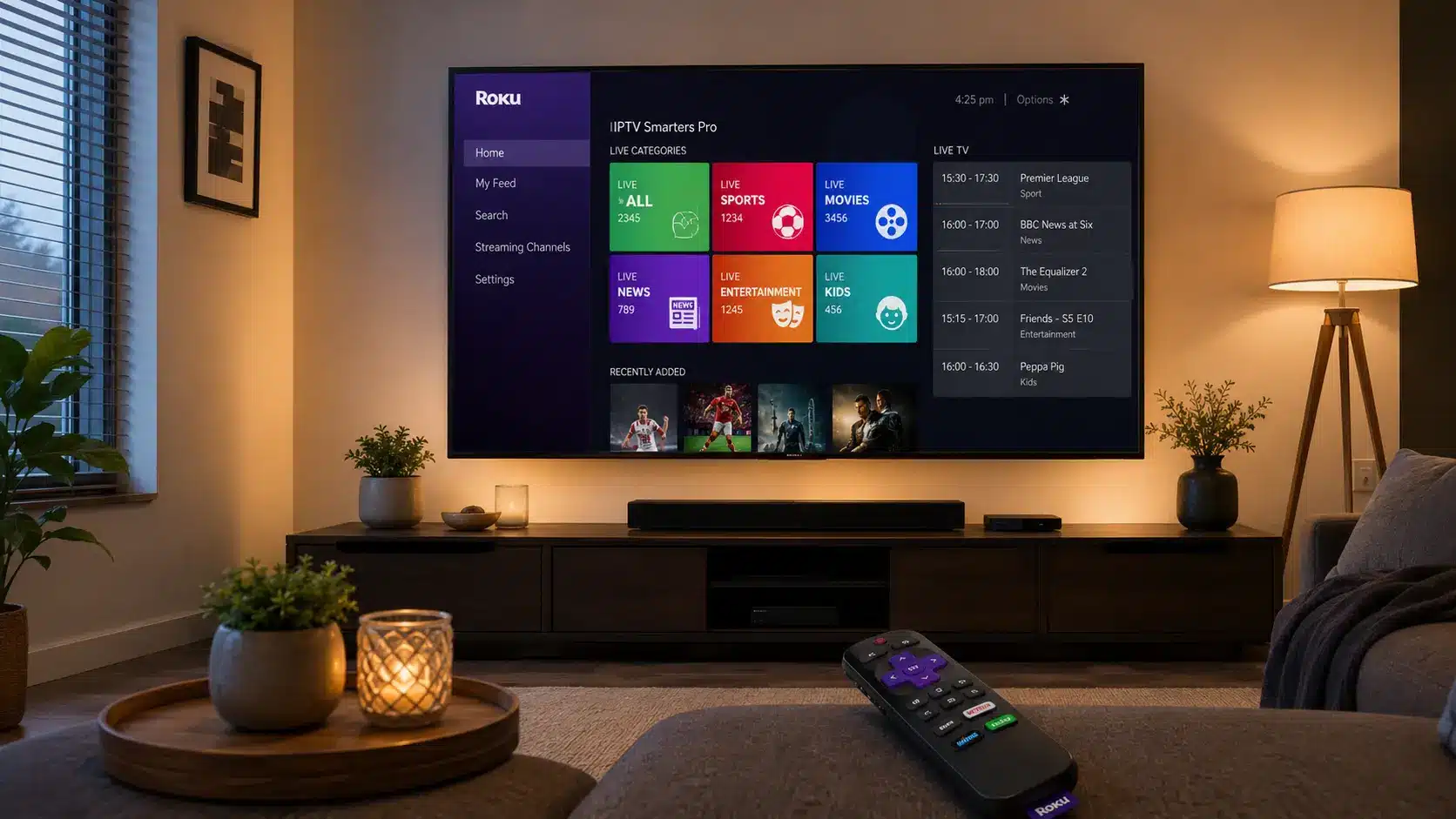
IPTV on Roku, explained
Roku is a closed platform: unlike a Firestick or Android box, you can't sideload an APK, so you can't just drop TiviMate or IPTV Smarters Pro onto it. Instead, the reliable way to watch IPTV on Roku is to use one of the IPTV player apps published in Roku's own Channel Store, which accept a standard IPTV playlist.
These Channel Store players don't come with any channels of their own — they're just the interface. You bring your own subscription in the form of an M3U URL (a single link containing every channel) or Xtream Codes (a server URL plus username and password), and the app turns it into live TV, VOD and an EPG on your Roku. If you'd rather not install anything, the other two methods — screen mirroring from Android and AirPlay from Apple — push whatever is playing on your phone straight to the Roku screen.
Which route is best? For a permanent, remote-friendly setup, the Channel Store player wins. For a quick one-off, mirroring or AirPlay is faster. We'll set up all three so you can pick whatever suits your devices.
The 3 ways to watch IPTV on Roku (compared)
Here's a quick overview before we dive into the steps:
| Method | Best for | Downside |
|---|---|---|
| Channel Store player | A permanent, remote-controlled setup | Player quality varies by app |
| Screen mirroring (Android) | A quick watch with no install | Ties up your phone; quality depends on Wi-Fi |
| AirPlay (Apple) | iPhone, iPad & Mac owners | Needs a 2020-or-newer Roku |
Why can't I install TiviMate or IPTV Smarters Pro on Roku?
This is the question most people ask first, so it's worth answering clearly. Roku runs its own operating system (Roku OS) and only allows apps that are published in its Channel Store. There's no way to sideload an Android APK the way you can on a Firestick or Android box, which is why you won't find TiviMate or the standard IPTV Smarters Pro app on a Roku.
That's not a dead end, though. The Channel Store has its own family of IPTV players that do exactly the same job — they take your M3U or Xtream Codes and play your channels — and for anything they don't cover, screen mirroring and AirPlay fill the gap. So while the method is different on Roku, the end result is the same: your full IPTV subscription, live on the big screen.
Which Roku devices work with IPTV?
Every current Roku can watch IPTV using at least one of these methods:
Roku TVs
TCL, Hisense & other Roku TVs.
Streaming Stick
Stick / Stick 4K / Express.
Roku Ultra
The fastest option for 4K.
AirPlay models
Most 2020+ Rokus support AirPlay 2.
For the smoothest IPTV on Roku, a Roku Ultra or a newer Streaming Stick 4K has the horsepower for 4K streams, while older Express models are fine for HD. If you want to use AirPlay, check that your Roku was released in 2020 or later — almost all of them support it now.
Using a different streaming device too? We also have setup guides for IPTV Smarters Pro on Firestick, Smart TV (Samsung & LG) and Android TV, plus full guides for TiviMate, IPTV on Kodi and IBO Player.
Before you start
- A Roku device or Roku TV connected to your network.
- A stable connection of 25 Mbps or faster (50 Mbps+ for 4K).
- Your IPTV login — an M3U URL or Xtream Codes from your provider, plus an EPG (XMLTV) URL if it isn't included.
- For mirroring: an Android phone; for AirPlay: an iPhone, iPad or Mac.
Method 1: Install an IPTV player from the Roku Channel Store
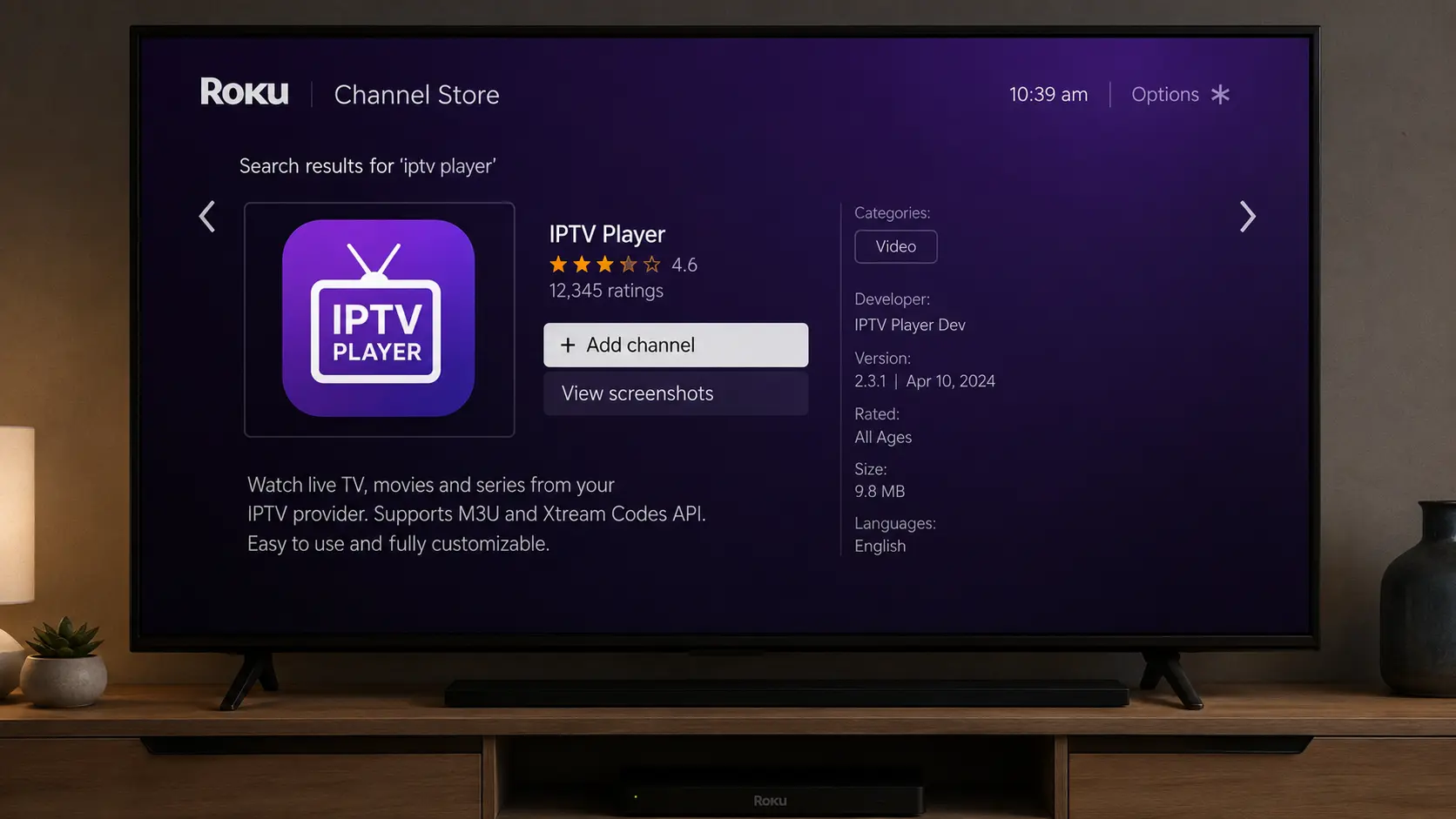
This is the best long-term way to watch IPTV on Roku because everything runs on the Roku itself, controlled by the remote. Several players are published in the official store — such as IPTV Smarters Player, Smart IPTV Player and Xtream IPTV Smart Player — and they all accept M3U and Xtream Codes.
Not sure which to pick? Any of them will play your channels, so it comes down to the interface. If your provider gave you Xtream Codes, a player with "Xtream" in the name is a safe bet; if you only have an M3U link, almost every player supports it. It's fine to install two or three, try each with your login, and keep the one whose layout and guide you like best — they're all free to add.
Open the Channel Store
From the Roku home screen go to Streaming Channels → Search Channels.
Search for an IPTV player
Type the name of a player such as IPTV Smarters Player or Smart IPTV Player.
Add the channel
Select the app and choose Add Channel. It installs to your Roku home screen in seconds.
Add your M3U URL or Xtream Codes
With the player installed, open it from the Roku home screen and add your subscription. You can use either format your provider gives you:
Open the player
Launch the IPTV player you just added and choose Add Playlist or Login.
Xtream Codes (recommended)
Pick Xtream Codes and enter your username, password and server URL — this loads categories, VOD and the EPG cleanly.
Or M3U URL
Alternatively choose M3U URL and paste the single playlist link your provider emailed you.
Save and load
Confirm, and the player pulls in your channels ready to watch IPTV on Roku.
Method 2: Screen mirror IPTV from an Android phone
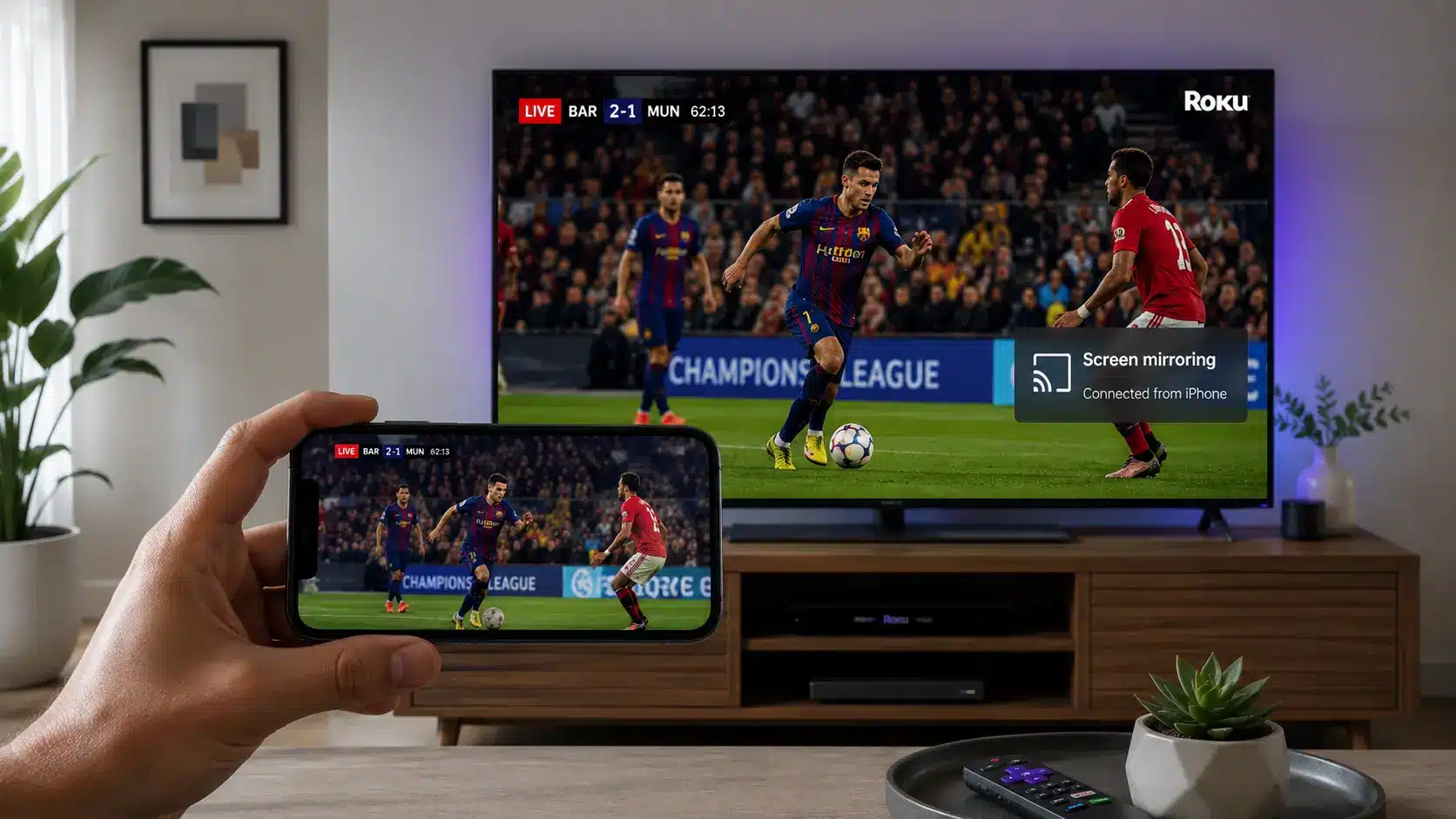
If you'd rather not install a player, you can mirror an Android phone that's already running your favourite IPTV app. First enable mirroring on the Roku, then cast from the phone:
Enable mirroring on Roku
Go to Settings → System → Screen mirroring and set the mode to Prompt or Always allow.
Open your Android IPTV app
Start playing a channel in your IPTV app on the phone.
Cast the screen
In the Android quick settings, tap Cast / Smart View and choose your Roku. Your phone screen appears on the TV.
The same trick works from a Windows PC: press Windows + K to open the Cast panel, choose your Roku, and your desktop mirrors to the TV — handy if you watch IPTV in a browser on a laptop. Whether you mirror from Android or Windows, keep both devices on the same network for the connection to appear.
Method 3: AirPlay IPTV from an iPhone, iPad or Mac
Apple users have it easiest: most Roku devices from 2020 onward support AirPlay 2, so you can beam an IPTV stream straight from an iPhone without installing anything on the Roku.
Play IPTV on your iPhone
Start a channel in your IPTV app (or a supported browser) on the iPhone, iPad or Mac.
Open Control Centre
Swipe into Control Centre and tap Screen Mirroring.
Choose your Roku
Select your Roku from the list and the stream plays on the TV.
AirPlay is the smoothest of the two mirroring options because it's built into both Apple and Roku, so there's no extra app and very little lag. It's ideal if you already watch IPTV on your iPhone and just want it on the TV occasionally. For everyday viewing, though, a native Channel Store player is still the most reliable way to enjoy IPTV on Roku, since it doesn't depend on your phone staying awake and connected.
Set up the EPG (TV guide)
A TV guide makes IPTV on Roku far nicer to use, giving you a now-and-next grid and programme descriptions. If you logged in with Xtream Codes, the EPG usually loads automatically. If you used an M3U link, add your provider's XMLTV EPG URL in the player's EPG or guide settings, then save.
If your programme times look an hour or two off, that's almost always a time-zone mismatch rather than a fault — set the correct time offset / GMT in the player and the guide will line up with the local schedule. An empty guide usually means the EPG URL is missing or mistyped, so check it against the link your provider sent.
Watch live TV on Roku
Open your IPTV player from the Roku home screen, pick a category and choose a channel — that's your IPTV on Roku setup complete. The first time you open a large playlist, give the app a few seconds to import everything; lists with tens of thousands of channels take a moment.
From there you can browse groups such as Sports, Movies and News, mark favourites for one-click access, and use the guide to see what's on now and next. Because the player runs natively on the Roku, you control everything with the Roku remote — no phone required once it's set up.
A few habits make IPTV on Roku nicer day to day: build a favourites list of the channels you actually watch, use the category filter to jump straight to Sports or Movies rather than scrolling, and note that most players remember where you were so you can resume VOD. If a single channel ever freezes while others play fine, it's that stream at the source — back out and reopen it, or try another feed for the same channel.
How to refresh or update your channels
IPTV providers add and remove channels regularly, so occasionally your list can fall out of date. You don't need to reinstall — just refresh:
Reload in the player
Open the IPTV player's settings and choose Refresh / Update playlist.
Re-login if needed
If channels vanish, re-enter your M3U URL or Xtream Codes to pull a fresh list.
Restart the channel
Close and reopen the app (or restart the Roku) to clear its cache and reload cleanly.
A quick refresh is usually all it takes to bring your Roku channel list and EPG back up to date.
Video guide: IPTV on Roku
Prefer to watch instead of read? This short video walks through installing an IPTV player and watching IPTV on Roku:
Best settings for smooth playback
- Use a strong connection — 25 Mbps or faster, and wired Ethernet on a Roku Ultra where you can.
- Match the stream quality — pick FHD/HD on older Rokus and 4K only on a Streaming Stick 4K or Ultra.
- Keep the Roku updated — install system updates under Settings for the best playback and AirPlay support.
- Prefer the player over mirroring — a native Channel Store player is smoother than mirroring for long viewing.
Most playback problems with IPTV on Roku come down to the connection or the provider's server rather than the device. A 4K stream needs a genuinely fast, steady line; if your Wi-Fi dips you'll see buffering, especially when mirroring. Where possible, put a Roku Ultra on Ethernet, keep sticks within reach of the router, and choose an IPTV provider with anti-freeze servers so peak-time sport stays smooth.
Troubleshooting IPTV on Roku
| Problem | Likely cause | Fix |
|---|---|---|
| Player won't load channels | Wrong M3U / Xtream details | Re-check the URL and that your plan is active |
| Can't find an IPTV app | Region / store listing | Search alternate names like "Smart IPTV Player" |
| Screen mirroring won't connect | Mirroring disabled / wrong network | Enable it in Settings and use the same Wi-Fi |
| No AirPlay option | Older Roku model | Update the Roku; AirPlay needs a 2020+ device |
| No EPG | Missing XMLTV URL / offset | Add the EPG URL and set the correct time offset |
| Buffering | Slow connection / weak server | Use 25 Mbps+ and an anti-freeze provider |
When something breaks, work from the outside in: confirm your subscription is still active, test the same M3U or Xtream Codes in another player, then re-check the details for a stray space or typo. Nine times out of ten an "IPTV on Roku problem" is really an expired plan or a mistyped link — and if the player is glitchy, mirroring or AirPlay is a quick fallback.
Key takeaways
- Roku blocks sideloading, so use a Channel Store IPTV player, mirroring or AirPlay.
- Players accept an M3U URL or Xtream Codes — Xtream is the cleanest.
- Screen mirroring works from Android; AirPlay works from Apple on 2020+ Rokus.
- You still need an active IPTV subscription with anti-freeze servers.
- A Roku Ultra or Streaming Stick 4K gives the smoothest 4K playback.
Is IPTV on Roku legal?
Roku and the player apps in its Channel Store are completely legal — they're just software. What matters is the subscription you load into them: a properly licensed IPTV service is fine, while unofficial "free" playlists that rebroadcast pay-TV are not. To stay on the right side of the line, use IPTV on Roku with a legitimate provider and avoid pirate playlists. For a plain-English rundown of the rules, see our guide on whether IPTV is legal in Australia. In short, if the service you pay for holds the rights to what it streams, watching it on your Roku is no different from using any other legitimate streaming app.
Roku vs Firestick for IPTV
If you're deciding which device to use for IPTV, it's worth knowing how Roku compares to the alternatives:
| Device | IPTV experience | Notes |
|---|---|---|
| Roku | Channel Store players, mirroring or AirPlay | Simple and stable, but no sideloading |
| Firestick | Sideload any app | Most flexible — see our Firestick guide |
| Android TV | Full app support incl. TiviMate | Great for power users — see TiviMate |
If you already own a Roku, the Channel Store method is the easiest way to get watching. If you want the most flexible player choice, a Firestick or Android box lets you sideload apps like TiviMate. Either way, the same IPTV subscription works across all of them.
Related IPTV guides
Keep exploring — these guides pair perfectly with your Roku setup:
Frequently asked questions
Can you watch IPTV on Roku?
Yes. The easiest way is to install an IPTV player from the Roku Channel Store and add your M3U URL or Xtream Codes. You can also screen mirror from an Android phone or AirPlay from an iPhone.
Does Roku have an IPTV app?
Roku doesn't allow sideloading, but several IPTV players are in the official Channel Store, including IPTV Smarters Player, Smart IPTV Player and Xtream IPTV Smart Player. They all accept M3U and Xtream Codes.
How do I add an M3U playlist on Roku?
Install an IPTV player from the Channel Store, open it, choose Add Playlist and paste your M3U URL — or log in with your Xtream Codes username, password and server URL.
Can I screen mirror IPTV to Roku?
Yes. Enable Screen Mirroring in Roku settings, then mirror an Android phone running an IPTV app, or use AirPlay from an iPhone, iPad or Mac to most 2020-or-newer Roku devices.
Is IPTV on Roku free?
Roku and the player apps are free, but you still need an active IPTV subscription for the channels. Choose a licensed provider with an M3U or Xtream Codes login.
Why won't my IPTV player load channels on Roku?
Usually the M3U or Xtream details are wrong or the plan has expired. Re-check the URL, confirm your subscription is active, and refresh the playlist in the player.
Which is the best IPTV player for Roku?
IPTV Smarters Player, Smart IPTV Player and Xtream IPTV Smart Player are all solid choices in the Channel Store. Try one with your Xtream Codes for the cleanest categories and EPG.
Does IPTV on Roku support 4K?
Yes, on a Roku Ultra or Streaming Stick 4K with a fast connection. Older Express models are better suited to HD and FHD streams.
Do I need a VPN for IPTV on Roku?
Not for a licensed service. A VPN can't be installed on Roku directly anyway — if you use one, set it up at the router level. Stick to a legitimate provider and you won't need one.
Power your Roku with a great subscription
65,000+ channels, 4K streams and anti-freeze servers — perfect for IPTV on Roku. From $14.99/month with a 7-day money-back guarantee.
Get Started with IPTV Australia 4K →