
Want live TV, sports and movies in your pocket? Setting up IPTV Smarters Pro for iPhone takes only a couple of minutes. This in-depth guide shows you how to install the app from the Apple App Store, log in with Xtream Codes or an M3U URL, load the EPG, cast to your TV with AirPlay, choose the best settings and stop buffering. By the end your iPhone will be ready to stream anywhere in crisp HD.
What is IPTV Smarters Pro?
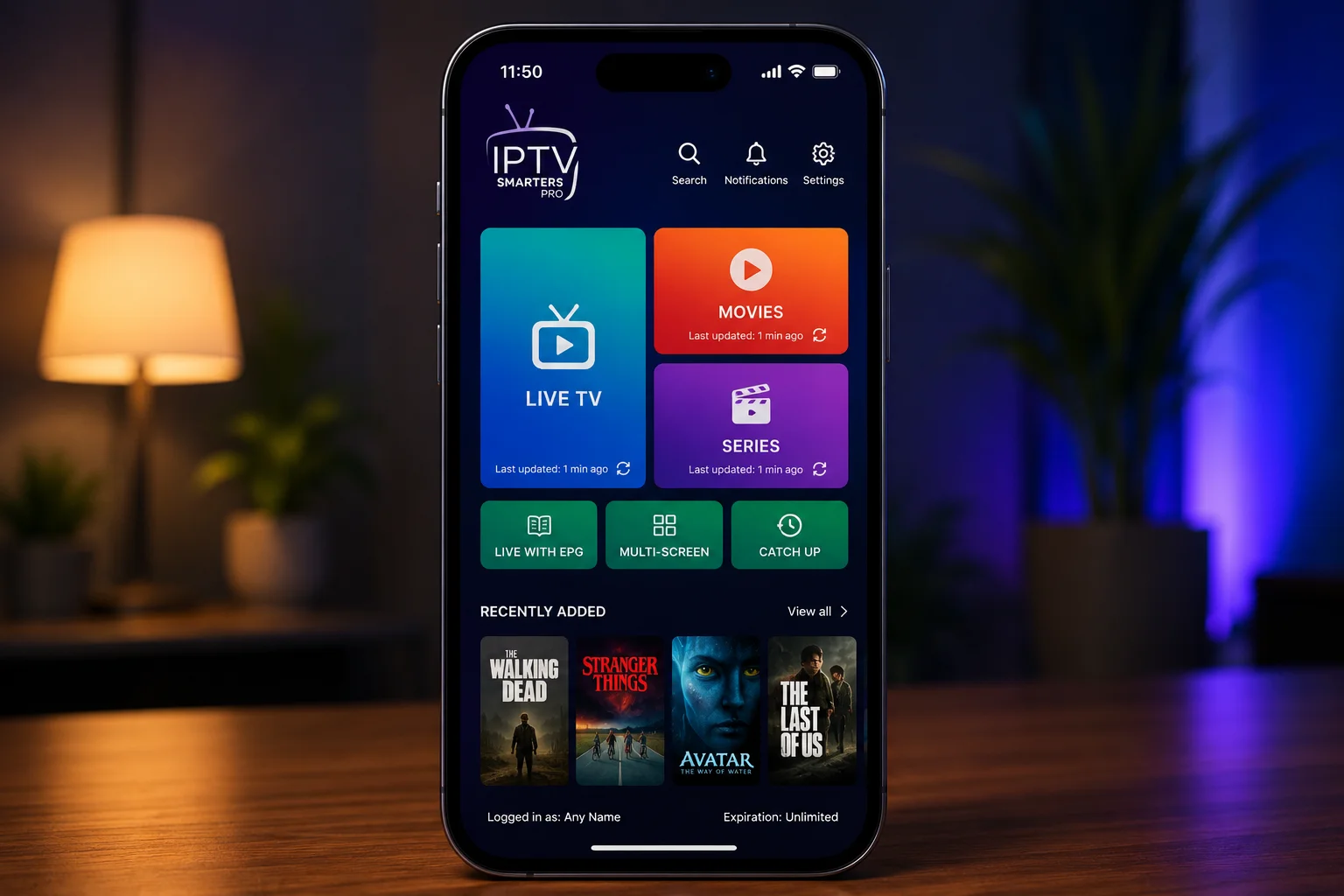
IPTV Smarters Pro is one of the most popular IPTV player apps in the world. It is a media player — not a content provider — so it gives you a clean interface to watch the channels and video-on-demand (VOD) supplied by your subscription. Running IPTV Smarters Pro for iPhone turns your phone into a portable entertainment hub with Live TV, Movies, Series and a built-in TV guide. Everything is organised into simple tabs, so within seconds of logging in you can flick between a live sports channel, a boxset and a film — all from a single app on your home screen.
Built for iOS, the app supports both Xtream Codes API and M3U playlist logins, includes a 7-day EPG, catch-up TV, parental controls and AirPlay so you can throw any stream onto the big screen.
What makes IPTV Smarters Pro for iPhone so handy is that your whole subscription lives in your pocket. The same login that runs on your TV works on the phone, so you can start a match in the kitchen, carry it to the couch, then AirPlay it to the TV — all without missing a minute. It's the most flexible way to use an IPTV plan day to day.
Why use IPTV Smarters Pro on iPhone
Your iPhone is the most portable way to enjoy IPTV — watch on the couch, in bed, on the train, or cast it to the TV when you get home. It's always with you, it's already connected, and the app is built to feel right at home on iOS with smooth scrolling and a clean, tab-based layout.
Watch anywhere
Live TV and VOD in your pocket, on Wi-Fi or mobile data.
AirPlay to TV
Cast any stream to an Apple TV or AirPlay TV in one tap.
Safe install
Downloaded straight from the official Apple App Store.
Fast setup
Install and log in in under three minutes.
Because it comes straight from the App Store, IPTV Smarters Pro for iPhone is also one of the safest ways to watch — there's no sideloading, no untrusted profiles and no developer mode. Apple vets the app, it updates automatically, and it sits alongside your other apps like any normal download. For a lot of people, the iPhone is where they test a new subscription before setting it up on the TV.
Before you start
To set up IPTV Smarters Pro for iPhone smoothly, make sure you have:
- An iPhone signed in with your Apple ID and running a recent version of iOS.
- A stable connection of 25 Mbps or faster (Wi-Fi recommended for HD/4K).
- Your IPTV login details — either Xtream Codes (username, password, server URL) or an M3U URL.
That's genuinely all you need — no computer, no cables and no technical know-how. The whole process, from opening the App Store to watching your first channel, usually takes under five minutes on a decent Wi-Fi connection.
How to install IPTV Smarters Pro from the App Store
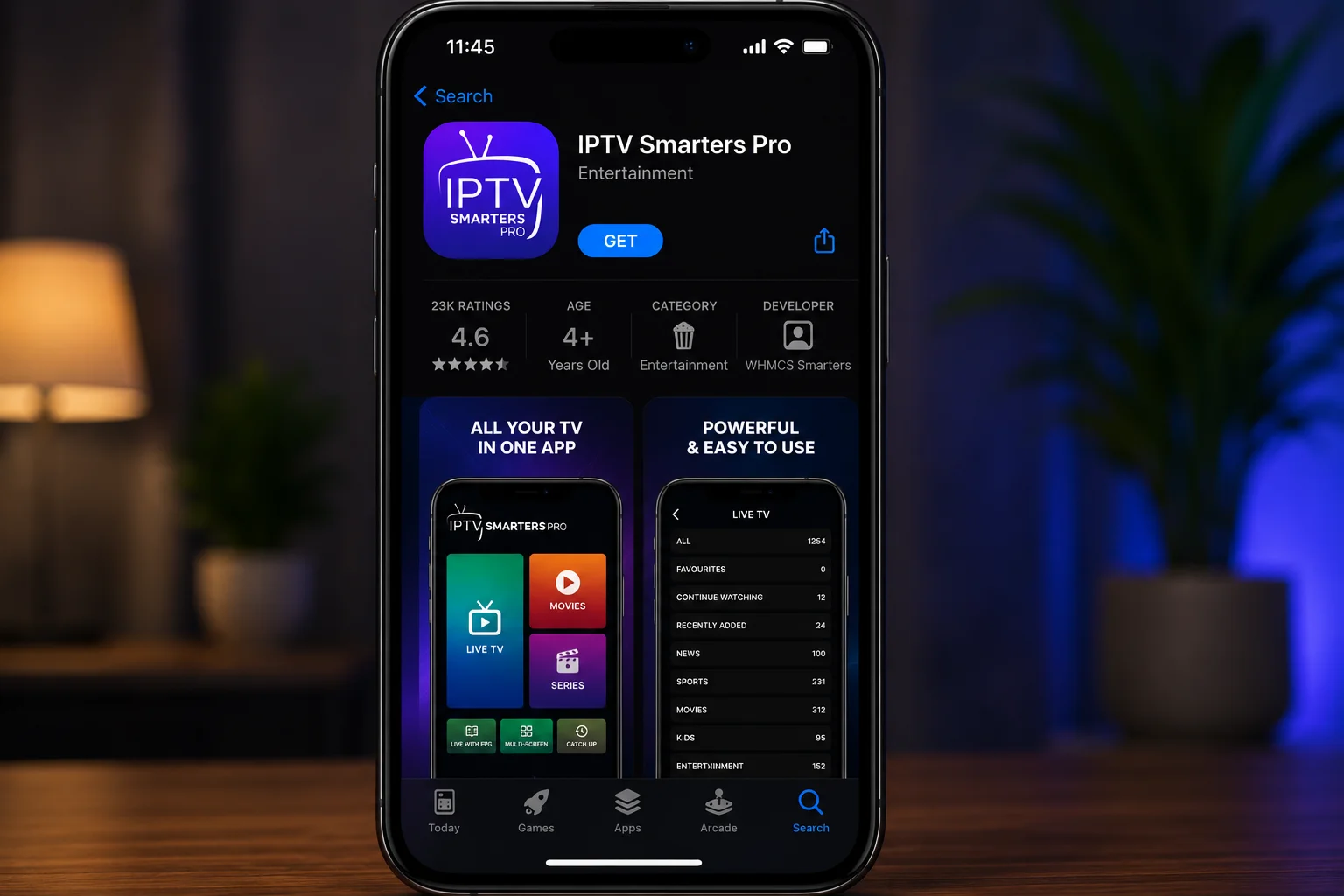
On iPhone there's just one method — and it's the easiest of all. Unlike Firestick or some Smart TVs, there's no sideloading, no APKs and no developer settings to enable. The app is right there in the Apple App Store, ready to download in a single tap.
Open the App Store
Tap the App Store icon on your iPhone home screen.
Search for the app
Tap Search and type IPTV Smarters, then select the IPTV Smarters Pro player.
Download
Tap Get and confirm with Face ID, Touch ID or your Apple ID.
Open the app
Tap Open and accept the terms to continue to login.
Make sure you pick the genuine IPTV Smarters Pro player — a few similar-looking apps use the same style of icon. The official one is free, has millions of downloads, and asks only for your IPTV login, never for payment to unlock channels. The very same app works on iPad, so if you have one you can repeat these steps there too.
Video guide: IPTV Smarters Pro for iPhone
Prefer to watch instead of read? This short video walks through installing IPTV Smarters Pro for iPhone from start to finish:
How to log in to IPTV Smarters Pro
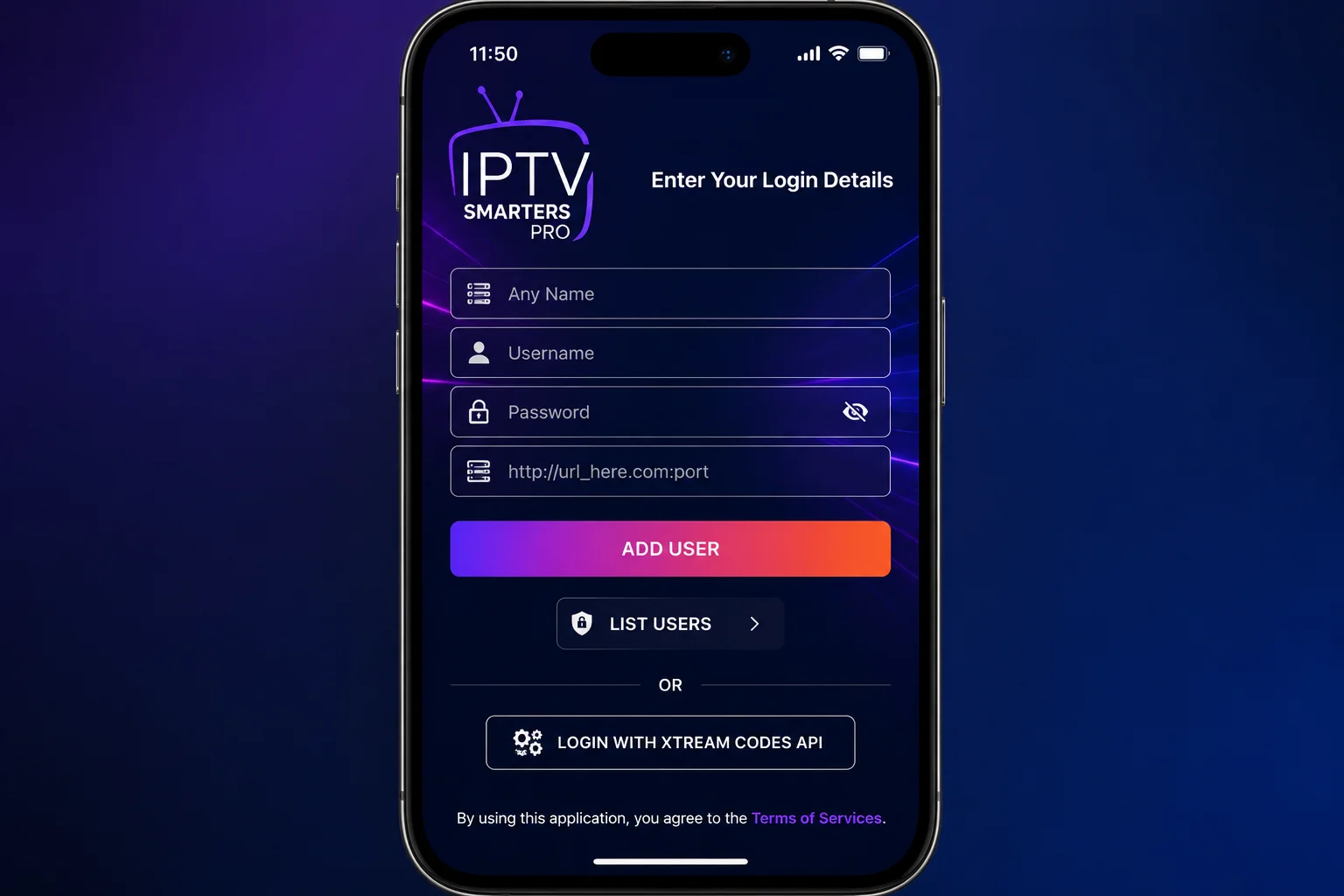
Once the app is open, choose how to load your channels. IPTV Smarters Pro for iPhone supports two login methods — pick the one that matches the details from your provider. On first launch you'll accept a short disclaimer, then land on this login screen:
| Login method | What you enter | Best for |
|---|---|---|
| Login with Xtream Codes API | Any name, username, password & server URL | Full EPG, catch-up & VOD (recommended) |
| Load Your Playlist (M3U URL) | Any name & a single M3U link | Quick setup, lighter guide data |
Adding the EPG (TV guide)
The EPG (Electronic Program Guide) shows what's on now and next. With an Xtream Codes login it usually loads automatically. If it doesn't, open Settings → General → EPG inside the app, paste your provider's XMLTV EPG URL, save and refresh.
If the guide loads but the times are an hour or two out, that's a time-zone offset rather than a fault — set the correct EPG time shift / GMT so programmes match the local schedule. A working EPG also unlocks catch-up on providers that support it, so you can scroll back and replay something that aired earlier in the week straight from your iPhone.
How to watch IPTV Smarters Pro on your TV (AirPlay)
One of the best things about IPTV Smarters Pro for iPhone is sending any stream to the big screen — no extra box or subscription needed. It's perfect for when you're watching on your phone and someone says "put it on the TV". If you have an Apple TV or an AirPlay-compatible TV (most Samsung, LG and Sony sets from recent years support AirPlay 2):
Connect to the same Wi-Fi
Make sure your iPhone and TV are on the same network.
Open Control Centre
Swipe down from the top-right and tap Screen Mirroring.
Pick your TV
Select your Apple TV / AirPlay TV, then start playback in IPTV Smarters Pro.
AirPlay keeps the phone in charge — you browse and pick channels on the iPhone while the picture plays on the TV, and you can lock the phone without stopping the stream. If you use Apple TV a lot, it's also worth installing IPTV Smarters Pro on the Apple TV itself for a fully remote-controlled experience.
Organise channels, favourites and multi-screen
A little setup makes IPTV Smarters Pro for iPhone much nicer to use every day:
- Favourites — tap the star on a channel so your regulars sit at the top of the list.
- Categories — filter by Sports, Movies, News or 4K to skip the endless scroll.
- Search — find a specific channel, film or match in seconds.
- Parental lock — PIN-protect adult categories, handy if the kids borrow your phone.
How to refresh or update your channels
Providers add and remove channels regularly, so now and then your list needs a refresh — no reinstall required:
Reload the playlist
Open Settings in the app and choose Refresh / Reload to pull the latest channels and EPG.
Or re-add your login
If channels vanish, remove and re-add your Xtream Codes to rebuild the list.
Force-close and reopen
Swipe the app closed and reopen it to clear its memory and reload cleanly.
Best settings & should you use a VPN?
Recommended playback settings
- Use Wi-Fi for HD/4K; mobile data works but uses more allowance.
- If a channel stutters, switch the player or lower the stream quality for that channel.
- Keep the app updated via the App Store for fixes and performance.
Do you need a VPN?
A VPN is optional but recommended. It encrypts your connection, protects your privacy and can reduce ISP throttling on streaming. On iPhone you can install a VPN app from the App Store, connect, then open IPTV Smarters Pro. Choose a VPN with a nearby server so it doesn't slow your streams — speed matters more than the number of locations.
How much data does IPTV use on iPhone?
Streaming on mobile data adds up quickly, so it's worth knowing the rough numbers before you watch away from Wi-Fi — especially for live sport, which people tend to watch on the go. As a guide, live IPTV on IPTV Smarters Pro for iPhone uses about:
- SD — roughly 0.7 GB per hour.
- HD (1080p) — roughly 1.5–3 GB per hour.
- 4K — 7 GB or more per hour.
To save data on the go, pick the SD or HD version of a channel, download nothing you don't need, and watch 4K on Wi-Fi. If you have a limited plan, keep an eye on Settings → Mobile Data on your iPhone to see how much the app is using.
Getting the best picture and sound on iPhone
The iPhone has a superb screen, so a good stream really shows. A few tips to get the most from IPTV Smarters Pro for iPhone:
- Watch on Wi-Fi for HD/4K — a steady 25–50 Mbps connection gives the sharpest, most stable picture.
- Pick the right stream — where a channel offers SD, HD and 4K, choose the highest your connection handles without buffering.
- Use the external player for tricky streams — if a channel won't play or has no sound, switch the player for that stream in the app.
- Enable AirPods / Bluetooth audio — pair headphones or a speaker for private or louder sound without extra setup.
If a 4K feed stutters on the phone, step down to the HD version of the same channel — a smooth 1080p stream on a 6-inch screen looks excellent and won't drain your data or battery as fast.
Troubleshooting: stop IPTV Smarters Pro buffering on iPhone
Most problems come from your connection or the provider's server — not the app itself, which is why reinstalling rarely helps. Work through this table for the common IPTV Smarters Pro for iPhone issues and you'll fix the vast majority in a minute or two:
| Problem | Likely cause | Fix |
|---|---|---|
| Constant buffering | Slow Wi-Fi or weak signal | Test speed (25 Mbps+), move closer to the router |
| Freezing on live sports | Overloaded provider server | Switch to a provider with anti-freeze servers |
| App crashes | Outdated app or low memory | Update the app and restart your iPhone |
| "Invalid login" | Typo or expired plan | Re-check Xtream details & confirm the subscription is active |
| AirPlay not working | Different Wi-Fi networks | Put iPhone and TV on the same network |
| Wrong times in the EPG | Time-zone offset | Set the correct EPG time shift in Settings |
| High mobile-data use | Watching 4K on cellular | Pick SD/HD on mobile data, keep 4K for Wi-Fi |
Quick test: if a channel plays fine on Wi-Fi but not on mobile data, it's your cellular signal or speed. If it fails everywhere, the stream is down at the provider's end — try another channel, and if lots are affected, contact your provider.
Key features of IPTV Smarters Pro
- 7-day EPG with a full live TV guide.
- AirPlay & casting to watch on the big screen.
- Catch-up TV to rewind shows that already aired.
- Parental controls to lock categories.
- Favourites & search for quick access.
- Automatic updates of channels and VOD.
- Multi-screen — the same login works on your iPad and TV too.
- Picture-in-picture & background audio on supported iOS versions.
Is IPTV Smarters Pro safe and legal?
The IPTV Smarters Pro app itself is completely legal and safe — it's just a media player, like VLC, and it comes straight from the Apple App Store. What matters is the source of your content. Always use a provider that streams properly licensed channels and VOD, and avoid suspicious "free" M3U lists that infringe copyright. A reputable IPTV provider in Australia is transparent about its service and offers genuine support and a money-back guarantee, so you can set up IPTV Smarters Pro for iPhone with complete peace of mind.
Key takeaways
- IPTV Smarters Pro for iPhone is free to install — but it only works once you add an active IPTV Australia subscription.
- Install it straight from the Apple App Store in a single tap — no sideloading or profiles needed.
- Use AirPlay or a Lightning/USB-C-to-HDMI adapter to watch on the big screen, with the phone as your remote.
- Log in with Xtream Codes for the best experience, including the full EPG, catch-up and VOD.
- Choose a provider with stable, anti-freeze servers for smooth streaming.
- Watch 4K on Wi-Fi and pick SD/HD on mobile data to protect your allowance.
- The same login also works on your iPad and Apple TV.
More IPTV Smarters Pro guides
IPTV Smarters Pro works across all your devices. Beyond your iPhone, see the setup guides for Apple TV & iPad, Smart TV and more:
Frequently asked questions
Is IPTV Smarters Pro on the App Store for iPhone?
Yes — install the IPTV Smarters Pro player on your iPhone directly from the Apple App Store. Search for IPTV Smarters and download the free app.
Is IPTV Smarters Pro free on iPhone?
Yes — the app is free to download. You still need an active IPTV subscription to load channels and video-on-demand.
Can I watch IPTV Smarters Pro from my iPhone on my TV?
Yes — use AirPlay to stream to an Apple TV or AirPlay-compatible TV, or connect with a Lightning/USB-C-to-HDMI adapter.
Why does IPTV Smarters Pro keep buffering on iPhone?
Usually a slow connection or an overloaded server. Use 25 Mbps or faster Wi-Fi, close background apps, and pick a provider with stable anti-freeze servers.
How do I add EPG to IPTV Smarters Pro on iPhone?
With Xtream Codes login the EPG loads automatically. Otherwise add your provider's XMLTV EPG URL under Settings → General → EPG and refresh, then give it a minute to populate.
Do I need a subscription to use IPTV Smarters Pro on iPhone?
Yes. The app is only a player. You need an active IPTV subscription, such as an IPTV Australia 4K plan, which emails your Xtream Codes login so the app works.
Does IPTV Smarters Pro work on iPad too?
Yes — it's the same app. Install it from the App Store on your iPad and log in with the same Xtream Codes. For Apple TV, see our Apple devices guide.
How much data does IPTV use on iPhone?
Roughly 0.7 GB/hour for SD, 1.5–3 GB/hour for HD and 7 GB+ for 4K. Watch 4K on Wi-Fi and pick SD/HD on mobile data to save your allowance.
Can I use picture-in-picture with IPTV Smarters Pro on iPhone?
On supported iOS versions, yes — you can keep a stream playing in a small window while you use other apps, and audio can continue in the background.
Why won't AirPlay show my iPhone stream on the TV?
Make sure the iPhone and TV are on the same Wi-Fi, then open Control Centre → Screen Mirroring and select your TV. If it still fails, restart both devices and try again.
Ready to stream on your iPhone?
65,000+ channels, 120,000+ movies & series, 4K streams and anti-freeze servers — built for IPTV Smarters Pro.
Get Started with IPTV Australia 4K →