
Want live TV, sports and movies on the big screen of your PC or laptop? Setting up IPTV Smarters Pro for Windows takes only a few minutes. This in-depth guide shows you how to download and install the Windows app, log in with Xtream Codes or an M3U URL, load the EPG, choose the best settings and stop buffering. By the end your Windows 11, 10 or 8 computer will be ready to stream in crisp 4K.
What is IPTV Smarters Pro?
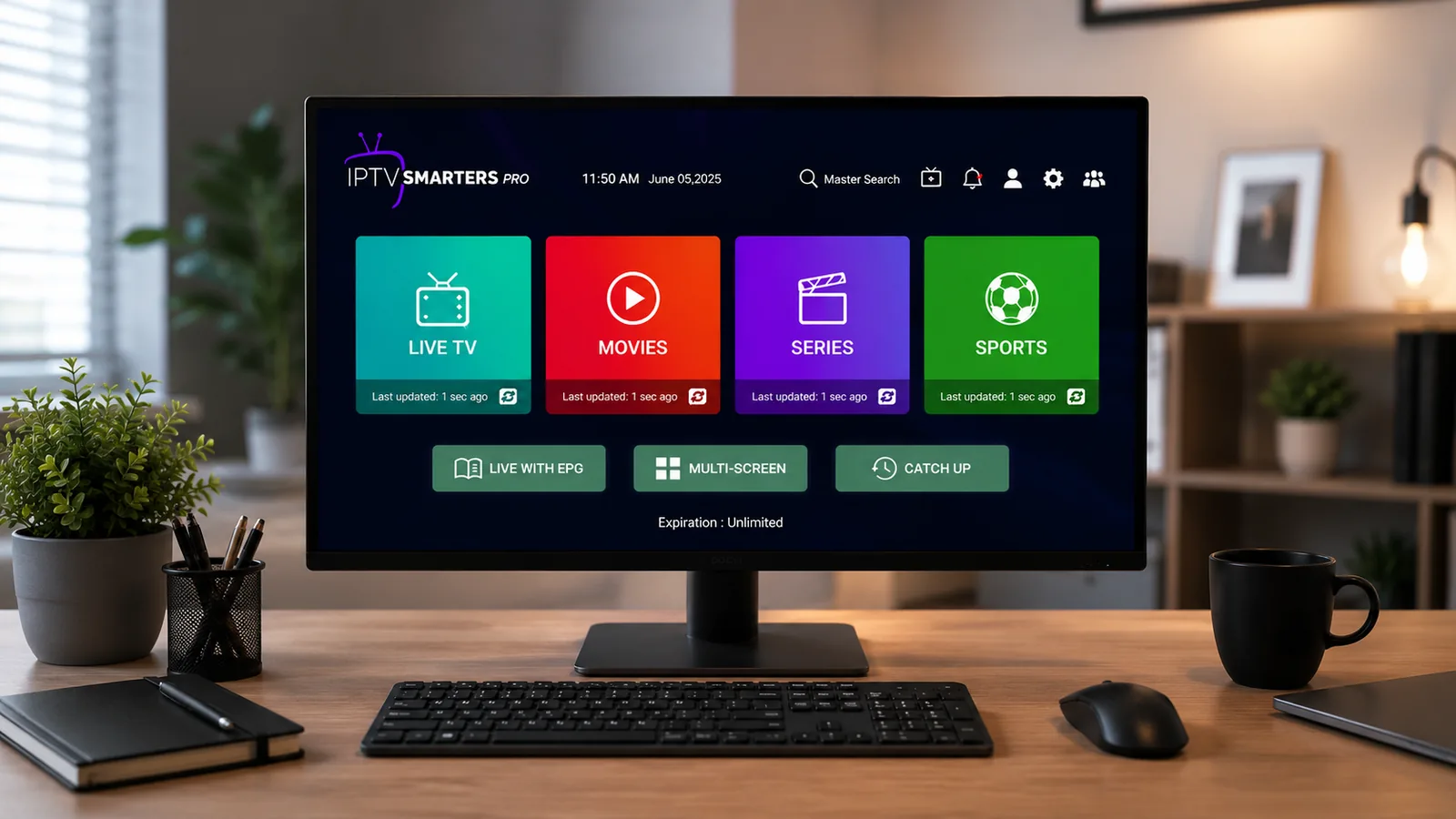
IPTV Smarters Pro is one of the most popular IPTV player apps in the world. It is a media player — not a content provider — so it gives you a clean interface to watch the channels and video-on-demand (VOD) supplied by your subscription. Running IPTV Smarters Pro for Windows turns your PC or laptop into a complete entertainment hub with Live TV, Movies, Series and a built-in TV guide, all organised into simple tabs you can click through in a second.
Built for Windows, the app supports both Xtream Codes API and M3U playlist logins, includes a 7-day EPG, catch-up TV, favourites and parental controls, and works great on a big monitor with keyboard and mouse.
Running IPTV Smarters Pro for Windows is ideal if your PC is already your main screen — for study, work or gaming — and you want live TV and VOD in the same place. You get the full app in a resizable window you can snap beside a browser, plus the speed of desktop hardware for smooth 4K, and the option to plug the PC into a TV for big-screen viewing whenever you like.
Why use IPTV Smarters Pro on Windows
A Windows PC gives you a large screen, fast hardware and the comfort of keyboard-and-mouse control, and it's the device most people already have switched on — perfect for browsing big channel lists and VOD libraries. It's also the device most people already have switched on at their desk, so IPTV becomes a click away while you work, study or game.
Big screen
Watch on your monitor, or connect to a TV via HDMI for the living room.
Easy control
Navigate quickly with keyboard and mouse — no fiddly remote.
4K & Full HD
Smooth 4K and Full HD playback on capable PCs and laptops.
Fast setup
Download, install and log in in a few minutes.
A PC also gives you flexibility other devices don't: type long Xtream Codes with a real keyboard instead of a fiddly remote, run the app in a window while you work or game, and switch to an external player for stubborn streams. For anyone who spends a lot of time at a desk, IPTV Smarters Pro for Windows is the most comfortable way to keep an eye on the game.
Before you start
To set up IPTV Smarters Pro for Windows smoothly, make sure you have:
- A Windows 11, 10 or 8 PC or laptop connected to the internet by Wi-Fi or Ethernet.
- A stable connection of 25 Mbps or faster (Ethernet recommended for 4K).
- Your IPTV login details — either Xtream Codes (username, password, server URL) or an M3U URL.
System requirements are modest. Any PC or laptop that runs Windows 8, 10 or 11 comfortably will run the app — you don't need a gaming rig. For smooth 4K, aim for a reasonably recent processor, updated graphics drivers and, ideally, a wired connection. HD and Full HD play well even on older, low-powered laptops.
How to download & install IPTV Smarters Pro on Windows
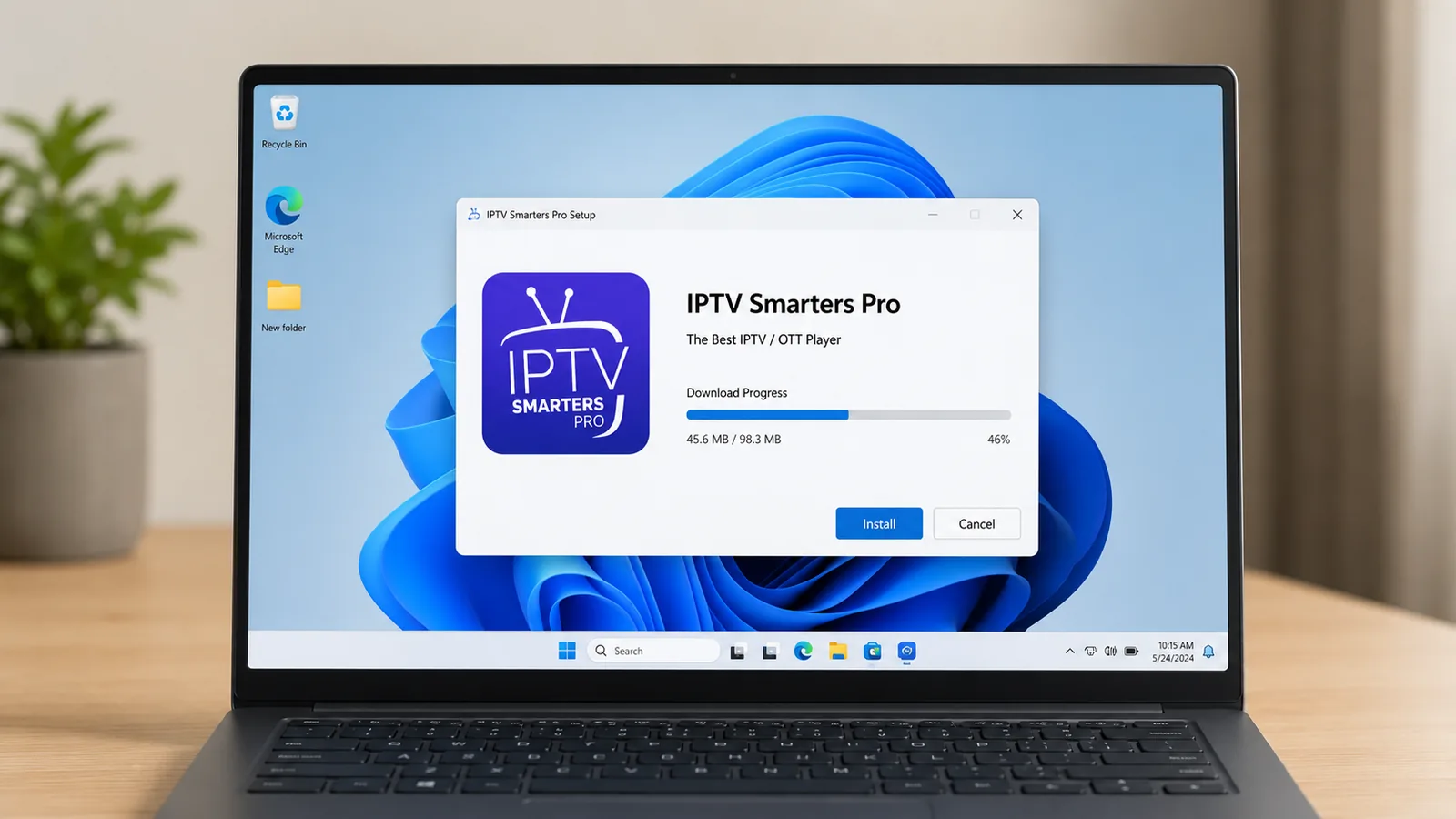
On Windows the app is a desktop program you download and install in a couple of clicks — there's no phone or streaming stick involved, and no app-store account needed. Once installed, it lives in your Start menu like any other program and updates itself, so you only do this setup once.
Download the Windows app
Get the official IPTV Smarters Pro Windows app for your PC from a trusted source, then save it somewhere easy to find like your Downloads folder. The installer is small and downloads in seconds on most connections.
Run the installer
Open the downloaded file and follow the on-screen steps to install it.
Launch the app
Open IPTV Smarters Pro from the Start menu or the desktop shortcut the installer creates.
Accept the terms
Accept the terms and conditions to continue to the login screen.
Always download IPTV Smarters Pro from the official source — avoid random sites bundling installers with extra junk. Windows SmartScreen may show a warning the first time you run a new app; if you downloaded it from the official page you can safely choose More info → Run anyway. The app is free and only ever asks for your IPTV login, never for payment to unlock channels.
How to log in to IPTV Smarters Pro
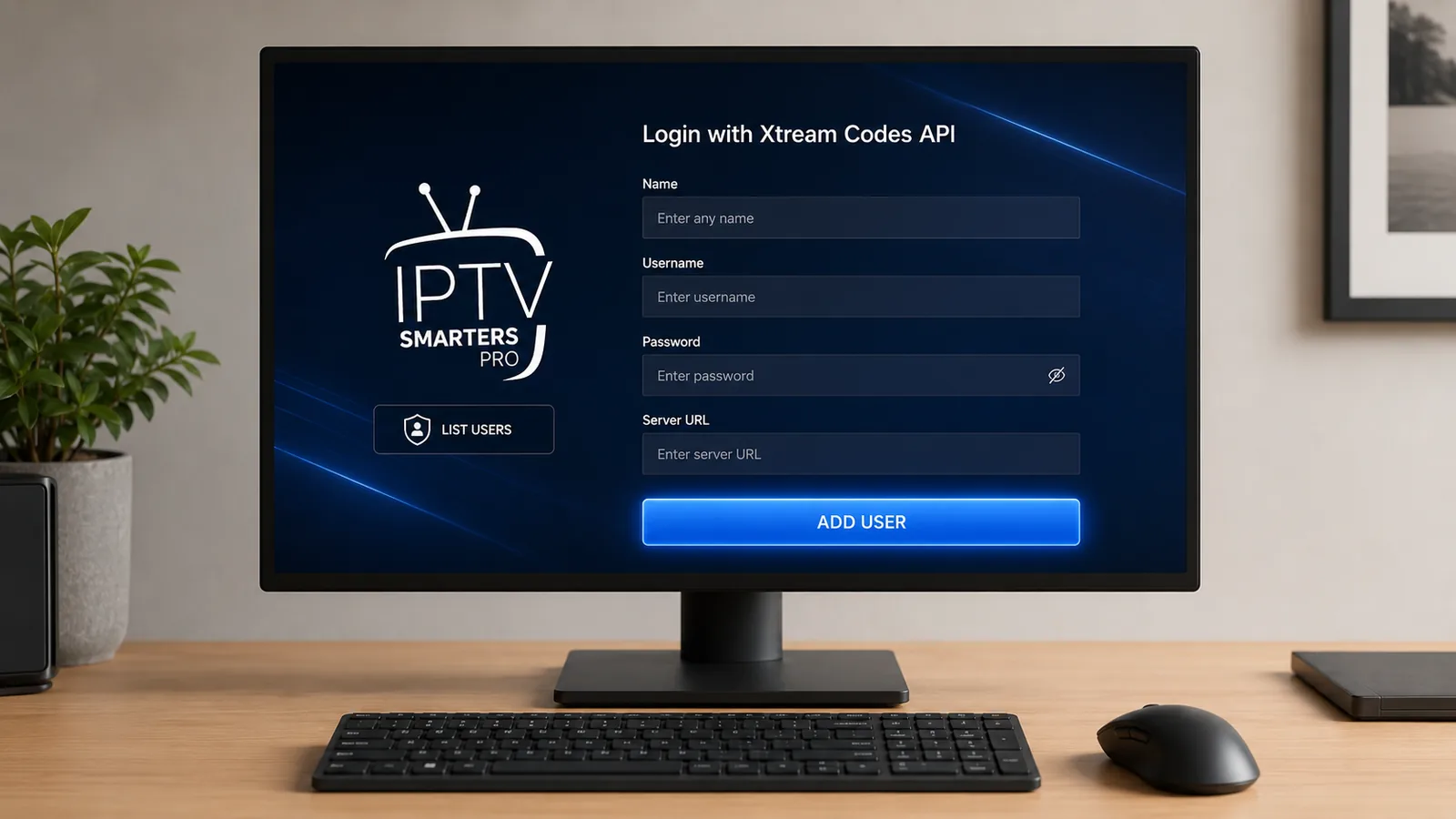
Once the app is open, choose how to load your channels. IPTV Smarters Pro for Windows supports two login methods — pick the one that matches the details from your provider. On first launch you'll accept a short disclaimer, then land on the login screen. A nice bonus on a PC is that you can copy and paste your server URL straight from the email your provider sent, which avoids typos:
| Login method | What you enter | Best for |
|---|---|---|
| Login with Xtream Codes API | Any name, username, password & server URL | Full EPG, catch-up & VOD (recommended) |
| Load Your Playlist (M3U URL) | Any name & a single M3U link | Quick setup, lighter guide data |
Adding the EPG (TV guide)
The EPG (Electronic Program Guide) turns a plain channel list into a proper TV experience, showing what's on now and next with programme descriptions. With an Xtream Codes login it usually loads automatically. If it doesn't, open Settings → General → EPG inside the app, paste your provider's XMLTV EPG URL, save and refresh.
If the guide loads but the times are an hour or two out, that's a time-zone offset rather than a fault — set the correct EPG time shift / GMT so programmes line up with the local schedule. A working EPG also powers catch-up on providers that support it, letting you scroll back and replay something that aired earlier in the week.
Video guide: IPTV Smarters Pro for Windows
Prefer to watch instead of read? This short video walks through installing IPTV Smarters Pro for Windows from start to finish:
How to watch on your TV from a Windows PC
Want IPTV Smarters Pro for Windows on the big screen? Since a PC isn't tied to the living room like a Smart TV, it's easy to send the picture to a TV whenever you want a bigger view — no casting app or extra account needed. A PC gives you two easy options:
HDMI cable
Connect your PC or laptop to the TV with an HDMI cable, press Windows + P and choose Duplicate or Second screen only.
Wireless (Miracast)
On a smart TV that supports it, press Windows + K and pick your TV to cast wirelessly, with no cable at all.
Go full screen
Start playback in the app and switch to full screen for a proper living-room experience.
Organise channels, favourites and categories
A little setup makes IPTV Smarters Pro for Windows much nicer to use every day:
- Favourites — mark the channels you watch most so they sit at the top of the list.
- Categories — filter by Sports, Movies, News or 4K to skip the endless scroll.
- Search — type to find a specific channel, match or film in seconds.
- Parental lock — PIN-protect adult categories on a shared family PC.
How to refresh or update your channels
Providers add and remove channels regularly, so occasionally your list needs a refresh — no reinstall required:
Reload the playlist
Open Settings in the app and choose Refresh / Reload to pull the latest channels and EPG.
Or re-add your login
If channels vanish, remove and re-add your Xtream Codes to rebuild the list.
Restart the app
Close IPTV Smarters Pro and reopen it to clear its memory and reload cleanly.
Best settings & should you use a VPN?
Recommended playback settings
- Use a wired Ethernet connection where possible for the most stable 4K playback.
- If a channel stutters, switch to the external player or lower the stream quality for that channel — a PC handles both easily.
- Keep the app and your graphics drivers updated for the best performance and smoothest 4K playback.
Do you need a VPN?
A VPN is optional but recommended. It encrypts your connection, protects your privacy and can reduce ISP throttling on streaming, though a legitimate service doesn't require one to work. On Windows you can install a VPN app, connect, then open IPTV Smarters Pro. Because a PC has a proper processor, a good VPN adds very little overhead to your streams. Choose a VPN with a nearby server so it doesn't slow your streams — speed matters more than the number of locations.
Getting the best 4K picture on Windows
A PC has the power for excellent 4K — often more than a budget streaming stick — but a few tweaks get the very best from IPTV Smarters Pro for Windows:
- Use Ethernet — a wired connection is the most stable for high-bitrate 4K streams.
- Update graphics drivers — current GPU drivers enable smooth hardware-accelerated decoding.
- Try an external player — if a channel won't play or has no sound, switch the player for that stream.
- Match your display — a 4K monitor or TV shows UHD channels at their best; on a 1080p screen, HD streams look great and use less bandwidth.
Is there an IPTV Smarters Pro for Mac?
This guide is for Windows, but Mac users often ask. There isn't a dedicated macOS build of IPTV Smarters Pro in the same way, so on a Mac most people use the IPTV Smarters web player in a browser, run it on an iPhone/iPad and AirPlay to the screen, or use an alternative desktop player. If you're on a Mac, our Apple devices guide covers the best options for the Apple ecosystem, including Apple TV, iPhone and iPad — all of which share the same Xtream Codes login as your Windows PC, so you can move between them freely.
Troubleshooting: stop IPTV Smarters Pro buffering on Windows
Most problems come from your connection or the provider's server — not the app. Work through this table for the common IPTV Smarters Pro for Windows issues:
| Problem | Likely cause | Fix |
|---|---|---|
| Constant buffering | Slow Wi-Fi | Test speed (25 Mbps+), switch to Ethernet |
| Freezing on live sports | Overloaded provider server | Switch to a provider with anti-freeze servers |
| App won't open / crashes | Outdated app or drivers | Reinstall the app and update graphics drivers |
| "Invalid login" | Typo or expired plan | Re-check Xtream details & confirm the subscription is active |
| No EPG / wrong guide | Missing EPG URL | Add the XMLTV EPG link under Settings and refresh |
| SmartScreen blocks the app | New/unsigned installer | If from the official source, choose More info then Run anyway |
| Black screen / no sound | Codec or decoding issue | Switch to the external player and update GPU drivers |
Quick test: if a channel plays on another device but not the PC, it's the PC's connection or decoding — try Ethernet or the external player and update your drivers. If a channel fails everywhere, the stream is down at the provider's end, so test another channel and contact your provider if many are affected.
Key features of IPTV Smarters Pro
- 7-day EPG with a full live TV guide.
- Catch-up TV to rewind shows that already aired.
- External player support for tricky streams.
- Parental controls to lock categories.
- Multi-screen viewing on capable PCs.
- Favourites & search for quick access.
- Automatic updates of channels and VOD.
- Keyboard & mouse control for fast browsing and easy typing.
- Windowed or full-screen playback beside your other apps.
Is IPTV Smarters Pro safe and legal?
The IPTV Smarters Pro app itself is completely legal and safe — it's just a media player, like VLC. What matters is the source of your content. Always download the app from the official source, use a provider that streams properly licensed channels and VOD, and avoid suspicious "free" M3U lists that infringe copyright. A reputable IPTV provider in Australia is transparent about its service and offers genuine support and a money-back guarantee, so you can set up IPTV Smarters Pro for Windows with complete peace of mind and cancel easily if it isn't for you.
Key takeaways
- IPTV Smarters Pro for Windows is free to install — but it only works once you add an active IPTV Australia subscription.
- Download the official Windows app and run the installer — it takes just a couple of clicks and lives in your Start menu afterwards.
- Log in with Xtream Codes for the best experience, including the full EPG, catch-up and VOD library.
- Use Ethernet and updated graphics drivers for the smoothest 4K playback.
- Choose a provider with stable, anti-freeze servers so live sport never freezes.
- Connect the PC to a TV with HDMI (Windows + P) for big-screen viewing.
- Only download the app from the official source to stay safe.
More IPTV Smarters Pro guides
IPTV Smarters Pro runs on all your screens. Beyond Windows, follow the guides for Firestick, Smart TV and your mobile devices:
Frequently asked questions
Can I install IPTV Smarters Pro on Windows?
Yes — there's a dedicated IPTV Smarters Pro Windows app you can download and install on Windows 11, 10 and 8, then log in with your Xtream Codes or M3U details.
Is IPTV Smarters Pro free on Windows?
Yes — the Windows app is free to download. You still need an active IPTV subscription to load channels and video-on-demand.
Which Windows versions does IPTV Smarters Pro support?
It runs on Windows 11, Windows 10 and Windows 8 on both desktop PCs and laptops, and doesn't need powerful hardware — anything that runs those versions of Windows smoothly will run the app comfortably.
Why does IPTV Smarters Pro keep buffering on Windows?
Usually a slow connection or an overloaded server. Use 25 Mbps or faster, prefer Ethernet, and pick a provider with stable anti-freeze servers.
How do I add EPG to IPTV Smarters Pro on Windows?
With Xtream Codes login the EPG loads automatically. Otherwise add your provider's XMLTV EPG URL under Settings → General → EPG and refresh.
Do I need a subscription to use IPTV Smarters Pro on Windows?
Yes. The app is only a player. You need an active IPTV subscription, such as an IPTV Australia 4K plan, which emails your Xtream Codes login so the app works.
Is there an IPTV Smarters Pro app for Mac?
There's no dedicated macOS build like the Windows one. On a Mac, use the IPTV Smarters web player in a browser, run it on an iPhone/iPad and AirPlay to the screen, or use an alternative desktop player.
How do I watch IPTV Smarters Pro from my PC on a TV?
Connect the PC to the TV with an HDMI cable and press Windows + P to duplicate the screen, or cast wirelessly with Windows + K to a Miracast-compatible smart TV.
Windows blocked the installer with SmartScreen - is it safe?
If you downloaded IPTV Smarters Pro from the official source, yes. SmartScreen often warns about newer apps; choose More info then Run anyway. Avoid unofficial download sites that bundle extra software.
Does IPTV Smarters Pro support 4K on Windows?
Yes, on a capable PC with updated graphics drivers and a fast connection (Ethernet recommended). Pick the UHD version of a channel where available and drop to HD if it ever stutters.
Ready to stream on your Windows PC?
65,000+ channels, 120,000+ movies & series, 4K streams and anti-freeze servers — built for IPTV Smarters Pro.
Get Started with IPTV Australia 4K →