
Want to watch live TV, sports and movies on the big screen? Setting up IPTV Smarters Pro for Smart TV is the easiest way to do it. This in-depth guide walks you through the whole process for every type of television — Android/Google TV, Samsung (Tizen) and LG (webOS) — including how to log in with Xtream Codes or an M3U URL, load the EPG, choose the best settings and fix buffering. By the end your Smart TV will be ready to stream in crisp 4K.
What is IPTV Smarters Pro?
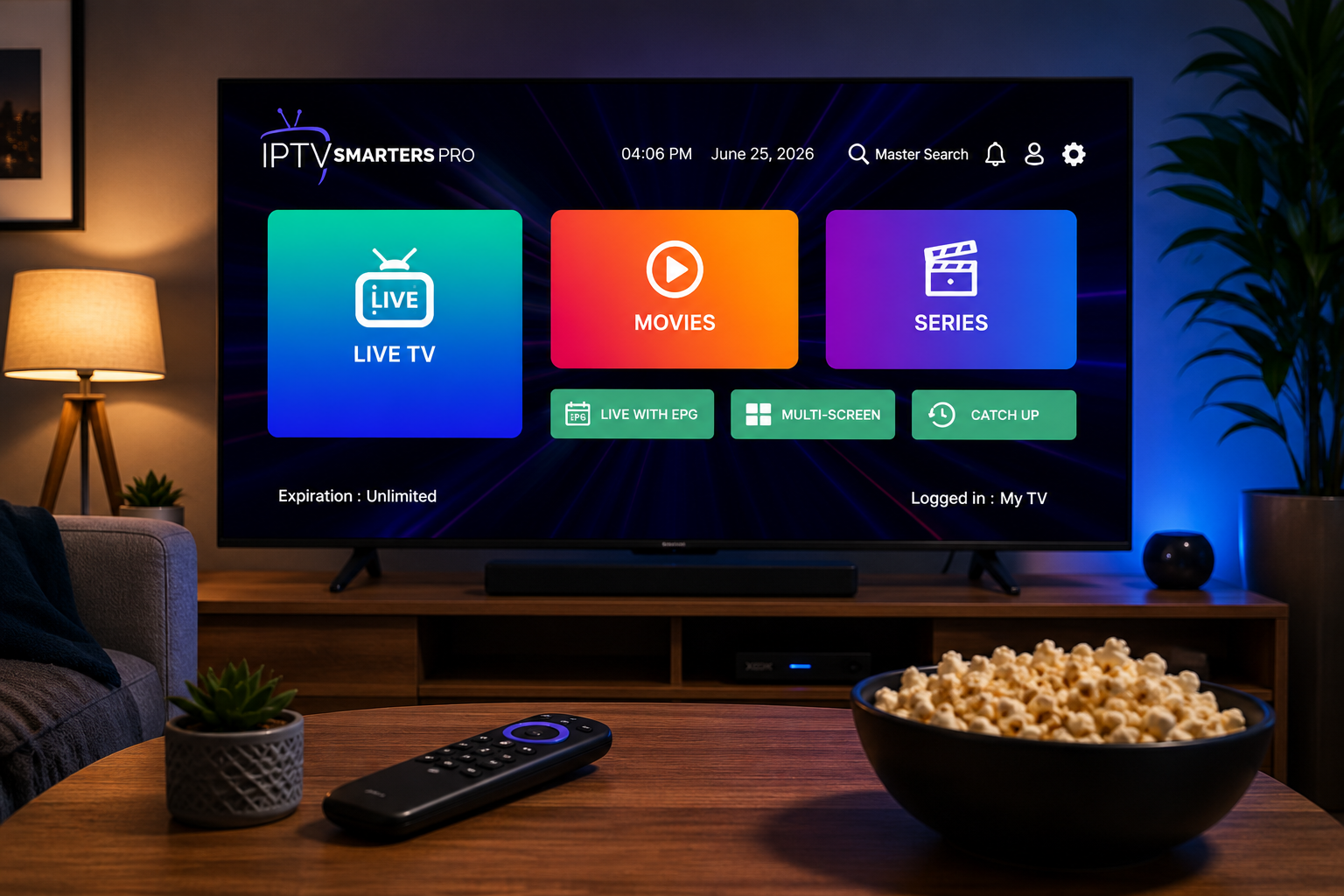
IPTV Smarters Pro is one of the most popular IPTV player apps in the world. It is a media player — not a content provider — so it gives you a clean interface to watch the channels and video-on-demand (VOD) supplied by your subscription. Running IPTV Smarters Pro for Smart TV turns your television into a complete entertainment hub with Live TV, Movies, Series and a built-in TV guide.
The app supports both Xtream Codes API and M3U playlist logins, a 7-day EPG, catch-up TV and parental controls — and it runs on every major Smart TV platform, either natively or through a small streaming device.
The reason IPTV Smarters Pro for Smart TV is so popular is simple: instead of squinting at a phone or juggling HDMI cables, you get your live channels, movies and series full-screen on the biggest display in the house, navigated with your normal TV remote. Once it's set up, the whole family can browse a proper TV guide, jump into catch-up, and switch between sports, news and box-sets in seconds — like a traditional pay-TV box, but running on your own subscription.
Smart TV compatibility: what works where
Before you install IPTV Smarters Pro for Smart TV, it helps to know how each platform handles the app, because Samsung and LG do not run Android apps the way Android TV does:
| Smart TV type | Operating system | How to get IPTV Smarters Pro |
|---|---|---|
| Sony, Philips, TCL, Hisense, Nvidia Shield | Android TV / Google TV | Install directly from the Google Play Store ✅ |
| Samsung | Tizen | Check Samsung Apps; if unavailable, use the web player or an Android TV device |
| LG | webOS | Check LG Content Store; if unavailable, use a compatible app or an Android TV device |
Why the difference? Android TV and Google TV (used by Sony, Philips, TCL, Hisense and the Nvidia Shield) run the same Android apps as a phone, so IPTV Smarters Pro installs in seconds from the Play Store. Samsung's Tizen and LG's webOS are closed systems with their own app stores, and the official IPTV Smarters Pro app isn't always published there. That's not a dealbreaker — Samsung and LG owners just pick one of the easy workarounds below and end up with the same experience.
Before you start
To set up IPTV Smarters Pro for Smart TV smoothly, make sure you have:
- A Smart TV connected to the internet (Wi-Fi or Ethernet).
- A stable connection of 25 Mbps or faster (50 Mbps+ for 4K).
- Your IPTV login details — either Xtream Codes (username, password, server URL) or an M3U URL.
It also pays to know your TV before you start. Check the brand and operating system in Settings → About: if it says Android TV or Google TV you'll install in seconds, while Samsung (Tizen) and LG (webOS) owners should have a spare HDMI port ready in case they add a streaming device. Two minutes of checking now saves a lot of guessing later.
Method 1: Install on Android / Google TV
This is the easiest method. If you own a Sony, Philips, TCL, Hisense or Nvidia Shield, your TV runs Android TV and IPTV Smarters Pro is right there in the Play Store. There's no sideloading, no developer mode and no workaround — it installs and updates like any other TV app, which is why Android and Google TV are the smoothest home for IPTV Smarters Pro for Smart TV.
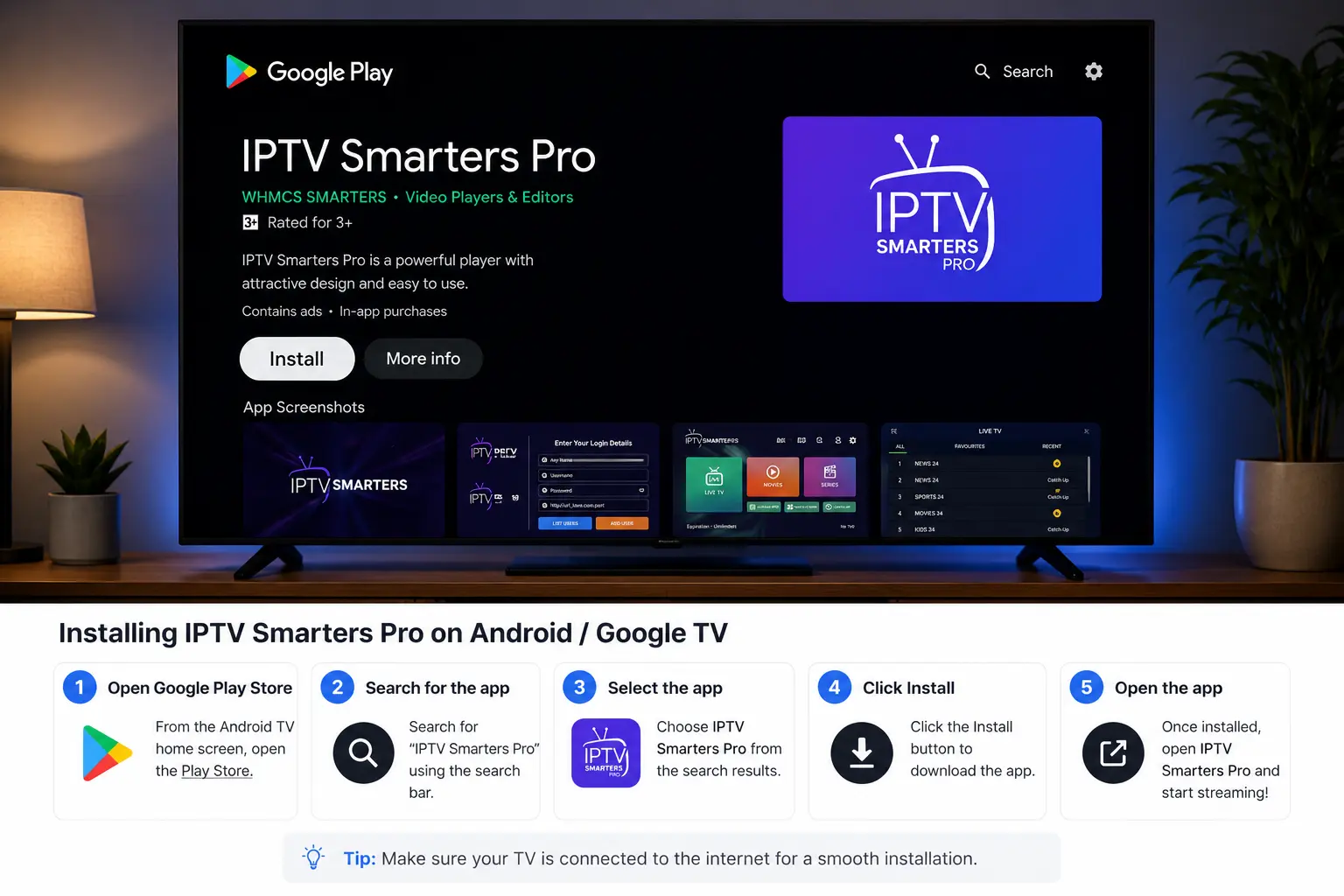
Open the Google Play Store
From the Android TV home screen, open the Play Store.
Search for the app
Search IPTV Smarters Pro and select it from the results.
Install & open
Choose Install, wait a few seconds, then select Open.
Method 2: Set up on a Samsung Smart TV
Samsung TVs run Tizen, so installing IPTV Smarters Pro for Smart TV depends on your region's Samsung store:
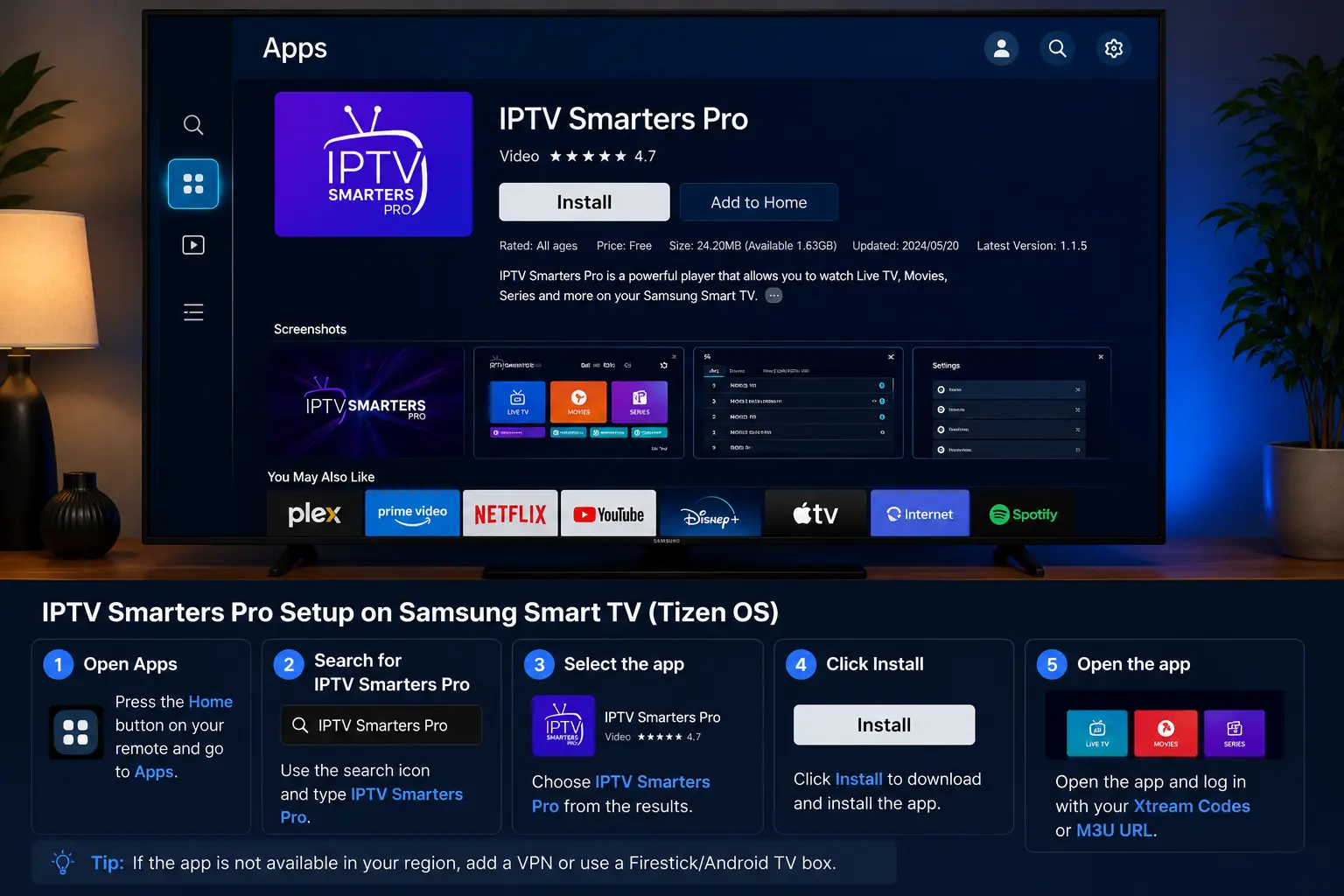
Open Smart Hub → Apps
Press the Home button and open the Apps store.
Search for an IPTV player
Search IPTV Smarters. If it's available in your region, install it and skip to the login step.
If it's not listed
Use the IPTV Smarters web player in your TV browser, or plug a small Android TV box / stick into the HDMI port to run the full app.
Method 3: Set up on an LG Smart TV
LG TVs use webOS, LG's own smart platform. The steps mirror Samsung — check the LG Content Store first, and if the app isn't listed in your region, fall back to a compatible player or, for the best result, an external Android TV device:
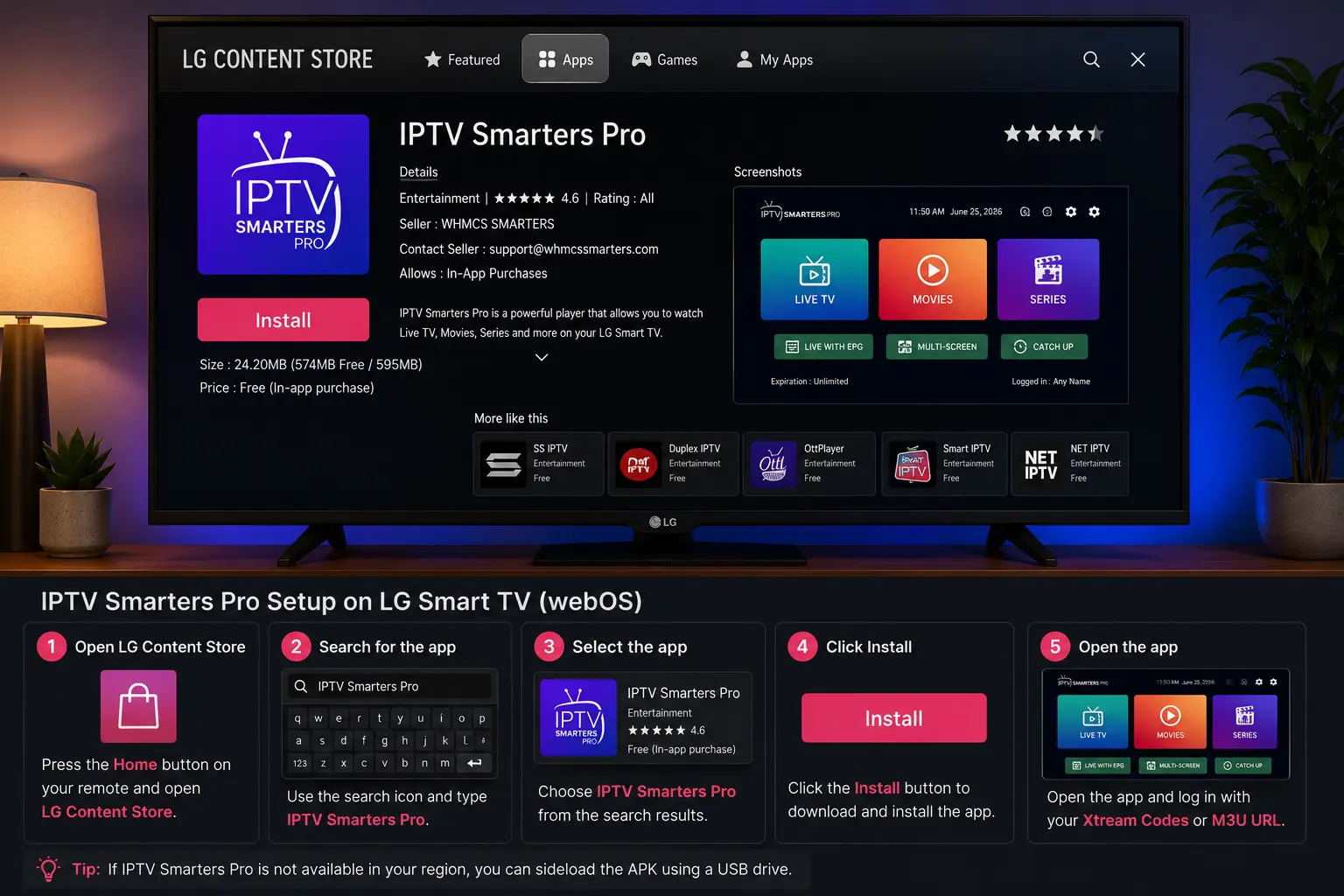
Open the LG Content Store
Press Home and open the LG Content Store.
Search for an IPTV player
Search IPTV Smarters. If available, install and continue to login.
If it's not listed
Use a compatible webOS IPTV app, or connect an Android TV device to enjoy IPTV Smarters Pro for Smart TV in full.
The easiest way on Samsung & LG: add an Android TV device
If your Samsung or LG store doesn't list the app, don't fight a workaround that stutters. By far the most reliable route to IPTV Smarters Pro for Smart TV on those sets is a small, cheap Android TV box or streaming stick plugged into a spare HDMI port. It costs less than a month or two of cable and gives you the genuine app with full EPG, catch-up and 4K support.
Plug in the device
Connect an Android TV box or stick (or an Amazon Firestick) to an HDMI port and switch the TV to that input.
Install the app
Open the Play Store (or sideload on Firestick) and install IPTV Smarters Pro, just like the Android TV method above.
Log in and watch
Enter your Xtream Codes and you're streaming — the same polished interface Android TV users get.
Samsung vs LG vs Android TV: which is easiest?
All three end up in the same place, but the effort differs. Here's the quick verdict for IPTV Smarters Pro for Smart TV:
| Platform | Ease of setup | Best route |
|---|---|---|
| Android / Google TV | Easiest ✅ | Install straight from the Play Store |
| Samsung (Tizen) | Moderate | Web player, or add an Android TV device |
| LG (webOS) | Moderate | Compatible webOS app, or an Android TV device |
Bottom line: if you're buying a new TV for IPTV, a Sony, TCL or Hisense running Google TV is the most painless. If you already own a Samsung or LG, a cheap streaming device turns it into a first-class IPTV Smarters Pro machine.
How to log in to IPTV Smarters Pro
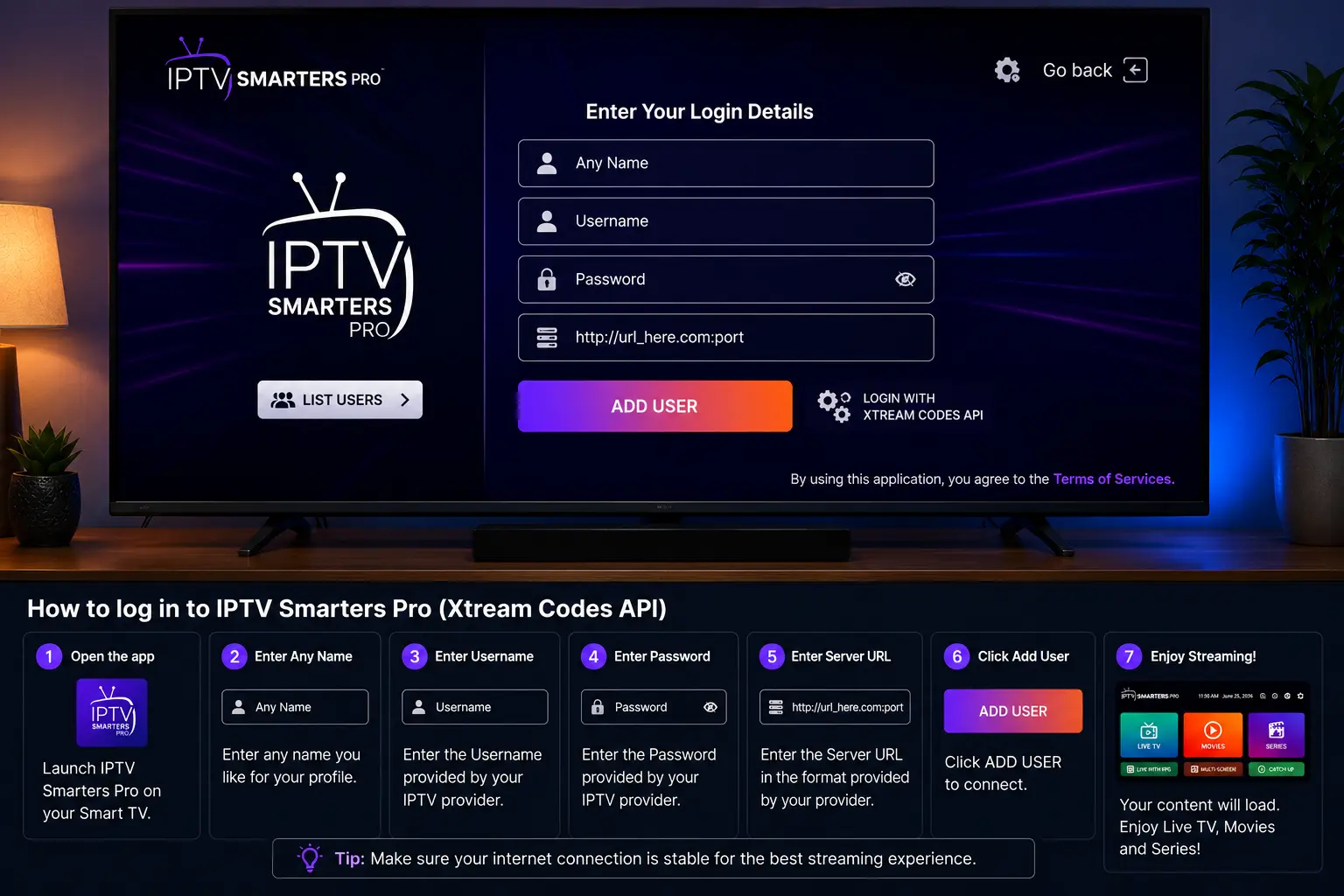
However you installed it, the login is the same. IPTV Smarters Pro for Smart TV supports two methods — pick the one that matches the details from your provider. On first launch the app asks you to accept its terms, then takes you straight to the login screen:
| Login method | What you enter | Best for |
|---|---|---|
| Login with Xtream Codes API | Any name, username, password & server URL | Full EPG, catch-up & VOD (recommended) |
| Load Your Playlist (M3U URL) | Any name & a single M3U link | Quick setup, lighter guide data |
Adding the EPG (TV guide)
The EPG (Electronic Program Guide) shows what's on now and next. With an Xtream Codes login it usually loads automatically. If it doesn't, open Settings → General → EPG inside the app, paste your provider's XMLTV EPG URL, save and refresh.
If the guide loads but the times look an hour or two out, that's a time-zone offset rather than a fault — set the correct EPG time shift / GMT so programmes line up with the local schedule. A working EPG also unlocks catch-up on providers that support it, letting you scroll back and replay shows that aired earlier in the week straight from the guide on your Smart TV.
Best settings & should you use a VPN?
Recommended playback settings
- Start with the built-in player; if a channel stutters, switch to an external player for that stream.
- Enable hardware decoding where available for smoother 4K playback.
- Keep the app updated to the latest version for fixes and performance.
Do you need a VPN?
A VPN is optional but recommended. It encrypts your connection, protects your privacy and can reduce ISP throttling on streaming. On Android TV you can install a VPN app directly; on Samsung or LG, run the VPN on your router instead.
Getting the best 4K picture on your Smart TV
A big screen shows off 4K — but it also exposes a weak connection. To get the sharpest picture from IPTV Smarters Pro for Smart TV:
- Feed it enough speed — 4K streams want 50 Mbps or more; wired Ethernet to the TV or box beats Wi-Fi for stability.
- Pick the 4K/UHD stream — many channels list SD, HD and 4K versions; choose the UHD feed where your TV and line can handle it.
- Use a capable device — an older Smart TV or budget stick may cap at 1080p; a modern Android TV box or 4K stick unlocks true UHD.
- Match the refresh rate — enable your TV's Match Content / auto frame-rate setting so live sport looks smooth.
If a 4K channel struggles, drop to the HD version of the same channel — a stable 1080p stream beats a stuttering 4K one, especially during peak-time sport.
Troubleshooting: fix IPTV Smarters Pro on Smart TV
Most problems come from your connection or the provider's server — not the app. Work through this table for the common IPTV Smarters Pro for Smart TV issues:
| Problem | Likely cause | Fix |
|---|---|---|
| Constant buffering | Slow or weak Wi-Fi | Test speed (25 Mbps+), use Ethernet or move the router closer |
| Freezing on live sports | Overloaded provider server | Switch to a provider with anti-freeze servers |
| App not in TV store | Tizen / webOS limitation | Use the web player or add an Android TV device |
| "Invalid login" | Typo or expired plan | Re-check Xtream details & confirm the subscription is active |
| No EPG / wrong guide | Missing EPG URL | Add the XMLTV EPG link under Settings and refresh |
| Black screen / no picture | Codec or player engine | Switch to the external player and enable hardware decoding |
| App won't update on Tizen/webOS | Closed store limitation | Use an Android TV device where the Play Store keeps it current |
A quick diagnostic: if the same channel plays fine on your phone but not the TV, the issue is the TV's connection or decoding — try Ethernet or the external player. If a channel fails on every device, it's the stream at the provider's end, so test another channel and, if it's widespread, contact your provider.
Key features of IPTV Smarters Pro
Beyond simply playing channels, IPTV Smarters Pro for Smart TV comes with the tools that make it feel like a proper TV service rather than a basic player:
- 7-day EPG with a full live TV guide.
- Catch-up TV to rewind shows that already aired.
- External player support for tricky streams.
- Parental controls to lock categories.
- Favourites & search for quick access.
- Automatic updates of channels and VOD.
- Multi-screen support — the same login works across your TV, phone and tablet.
Is IPTV Smarters Pro safe and legal?
The IPTV Smarters Pro app itself is completely legal and safe — it's just a media player, like VLC. What matters is the source of your content. Always use a provider that streams properly licensed channels and VOD, and avoid suspicious "free" M3U lists that infringe copyright. A reputable IPTV provider in Australia is transparent about its service and offers genuine support and a money-back guarantee, so you can set up IPTV Smarters Pro for Smart TV with total peace of mind.
Key takeaways
- IPTV Smarters Pro for Smart TV is free to install — but it only works once you add an active IPTV Australia subscription.
- Android / Google TV installs it straight from the Play Store; Samsung and LG may need the web player or an Android TV device.
- Log in with Xtream Codes for the best experience, including full EPG.
- Most buffering comes from your connection or the server, not the app.
- Choose a provider with stable, anti-freeze servers for smooth 4K streaming.
More IPTV Smarters Pro guides
IPTV Smarters Pro runs on all your screens. Beyond your Smart TV, see the setup guides for Firestick, Android TV and more:
Frequently asked questions
Is IPTV Smarters Pro available on Samsung Smart TV?
Samsung TVs run Tizen, so IPTV Smarters Pro isn't always in the Samsung store. Check Samsung Apps first; if it's not listed in your region, use the IPTV Smarters web player or add a small Android TV box or stick to your Samsung TV.
Can I install IPTV Smarters Pro on an LG Smart TV?
LG TVs use webOS. Search the LG Content Store; if IPTV Smarters Pro is unavailable in your region, use a compatible webOS IPTV app or add an external Android TV device.
Is IPTV Smarters Pro free on Smart TV?
Yes — the app is free to download. You still need an active IPTV subscription to load channels and video-on-demand.
Why does IPTV Smarters Pro keep buffering on my Smart TV?
Usually a slow connection or an overloaded server. Use 25 Mbps or faster, restart the TV, and pick a provider with stable anti-freeze servers.
How do I add EPG to IPTV Smarters Pro on Smart TV?
With Xtream Codes login the EPG loads automatically. Otherwise add your provider's XMLTV EPG URL under Settings → General → EPG and refresh.
Do I need a subscription to use IPTV Smarters Pro on Smart TV?
Yes. The app is only a player. You need an active IPTV subscription, such as an IPTV Australia 4K plan, which emails your Xtream Codes login so the app works.
Which Smart TVs support IPTV Smarters Pro?
Any Android TV or Google TV (Sony, Philips, TCL, Hisense, Nvidia Shield) runs it natively from the Play Store. Samsung (Tizen) and LG (webOS) can use the web player or, best of all, a small Android TV box or stick for the full app.
Can I use IPTV Smarters Pro on Samsung without an Android box?
Sometimes — if the app or the IPTV Smarters web player is available in your region's Samsung store you can use it directly. For the most reliable experience with full EPG and 4K, a cheap Android TV device is the recommended route.
Does IPTV Smarters Pro support 4K on Smart TV?
Yes, on a 4K TV and a capable device with a fast enough connection (50 Mbps+). Pick the UHD version of a channel where available, and use Ethernet for the steadiest picture.
How do I update IPTV Smarters Pro on my Smart TV?
On Android/Google TV it updates automatically through the Play Store. On Samsung or LG, updates depend on the store listing — another reason an Android TV device, which keeps the app current, is the smoother long-term choice.
Ready to stream on your Smart TV?
65,000+ channels, 120,000+ movies & series, 4K streams and anti-freeze servers — built for IPTV Smarters Pro.
Get Started with IPTV Australia 4K →